> ## Documentation Index
> Fetch the complete documentation index at: https://docs.levelset.io/llms.txt
> Use this file to discover all available pages before exploring further.
# Documents
> Find and open your organization's handbooks, policies and reference material, upload new ones, sort them into folders, choose which roles can open each one, and let Levi answer from them
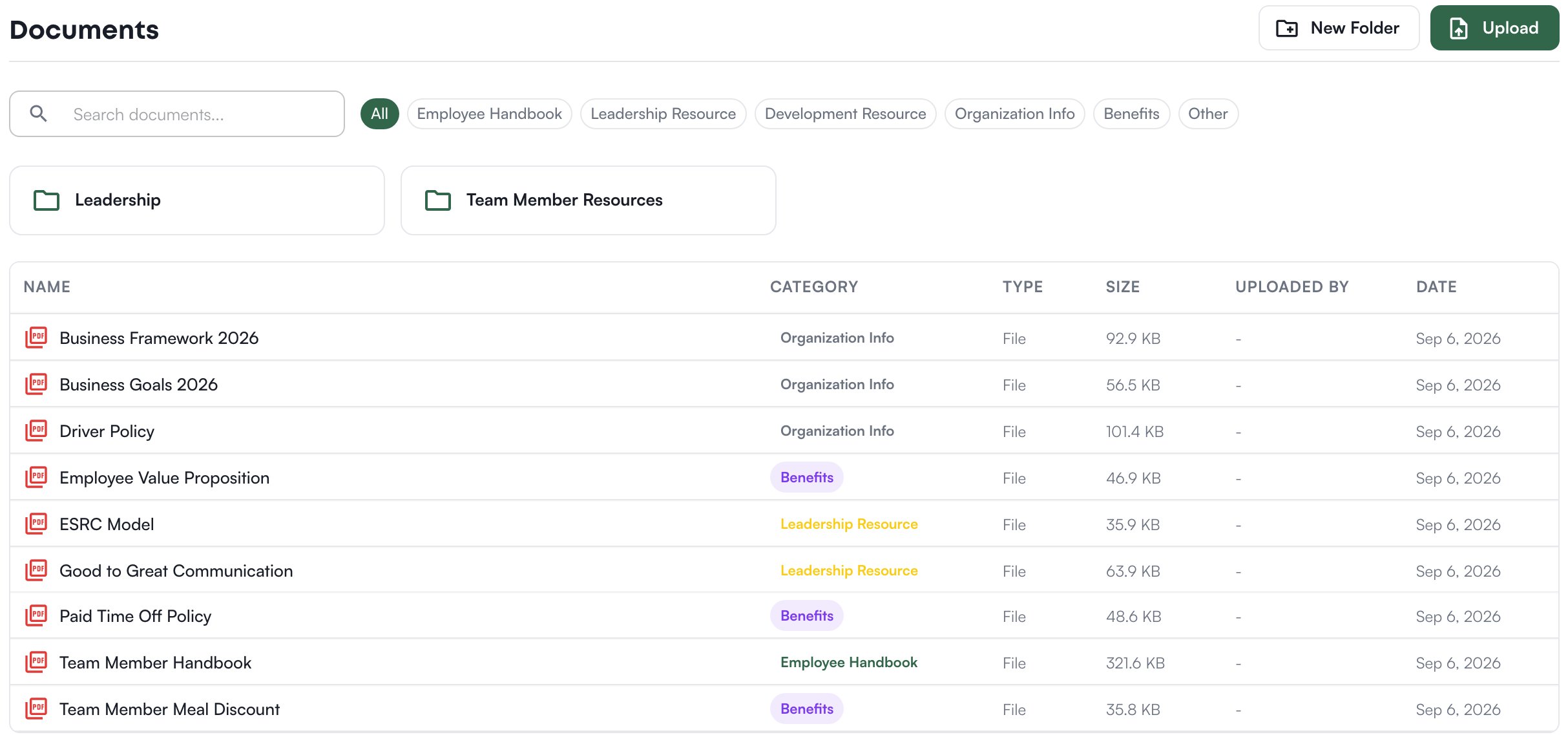
Documents is where your organization's written material lives: the handbook, policies, training references, anything a leader needs to find rather than remember. A document is shared with roles you choose, and Levi, the assistant built into Levelset, answers questions from the documents a person is allowed to open. Open **Playbook > Documents**.
## Find and open a document
The page lists the documents shared with your role, in folders. Open a folder to see what is inside, filter by category with the chips at the top, or type in the search box. Click a document to open its details, read what it is about, and click **Download** to save the file.
 ## Add a document
1. On **Playbook > Documents**, open the folder it belongs in, or stay at the top, and click **Upload**.
2. Choose **Upload File** and drop in a PDF, DOCX, TXT, MD, PNG, JPEG or WebP file, or **Link URL** for a page on the web, or **Paste Text** for text you have.
3. Give it a **Document Name**, an optional description and a **Category**, such as Employee Handbook or Benefits, which is how the list filters.
4. Click the upload button. Levelset then extracts the document's content so Levi can read it; the document's details show how far that has got.
Click **New Folder** to make a folder; a document uploaded while a folder is open goes into it. Inside a document's details you can replace it with a new version or click **Delete Document** to remove it for good.
## Choose who can open a document
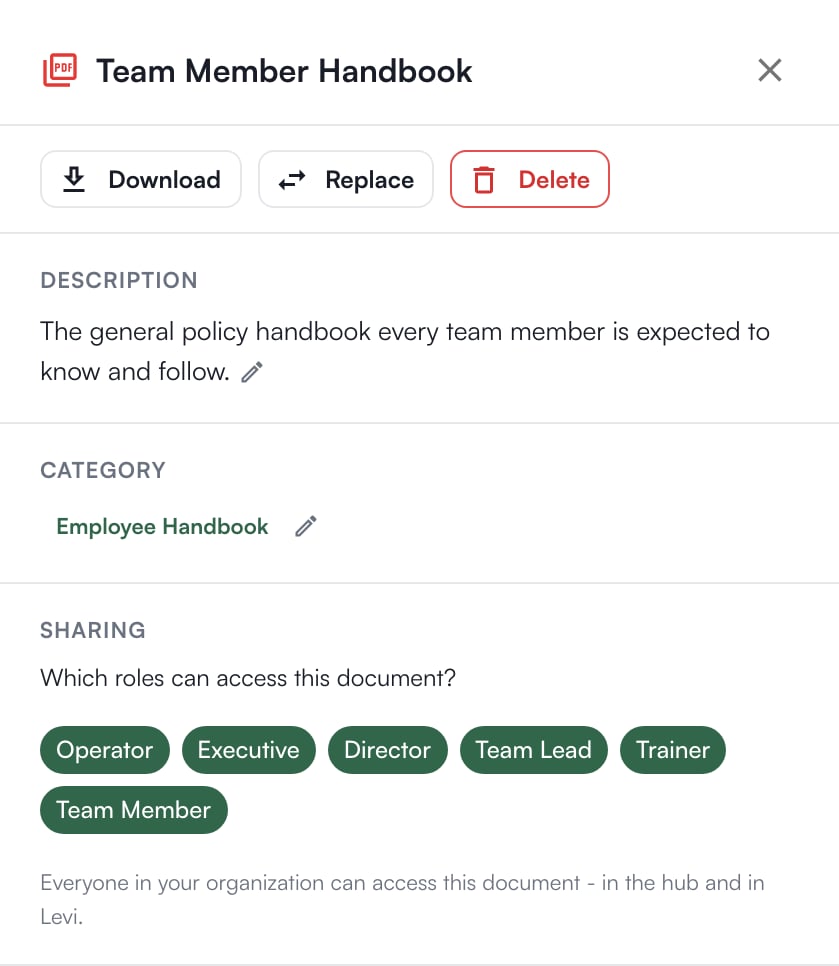
Open the document and look at **Sharing**: one pill per role in your organization. A highlighted role can open the document, and Levi answers from it for people in that role. Your organization's top role is always on and cannot be turned off. Click a role to add or remove it; the change saves at once, and if it cannot be saved the roles are put back. A document shared with every role reads as accessible to everyone in your organization, on this page and in Levi. A document with no roles on it is private to the top role.
## Add a document
1. On **Playbook > Documents**, open the folder it belongs in, or stay at the top, and click **Upload**.
2. Choose **Upload File** and drop in a PDF, DOCX, TXT, MD, PNG, JPEG or WebP file, or **Link URL** for a page on the web, or **Paste Text** for text you have.
3. Give it a **Document Name**, an optional description and a **Category**, such as Employee Handbook or Benefits, which is how the list filters.
4. Click the upload button. Levelset then extracts the document's content so Levi can read it; the document's details show how far that has got.
Click **New Folder** to make a folder; a document uploaded while a folder is open goes into it. Inside a document's details you can replace it with a new version or click **Delete Document** to remove it for good.
## Choose who can open a document
Open the document and look at **Sharing**: one pill per role in your organization. A highlighted role can open the document, and Levi answers from it for people in that role. Your organization's top role is always on and cannot be turned off. Click a role to add or remove it; the change saves at once, and if it cannot be saved the roles are put back. A document shared with every role reads as accessible to everyone in your organization, on this page and in Levi. A document with no roles on it is private to the top role.
 Someone who has a login but no role on the roster, for example office staff, sees every document if their permission level lets them edit documents.
## Who can do what
| If you notice this | The permission behind it |
| -------------------------------------------------------- | ---------------------------- |
| **Documents** is missing from the **Playbook** menu | Documents > View Documents |
| **Upload** is refused | Documents > Upload Documents |
| Changing a document's details or replacing it is refused | Documents > Edit Documents |
| **Delete Document** is refused | Documents > Delete Documents |
| **New Folder**, renaming or deleting a folder is refused | Documents > Manage Folders |
These decide what you can do on the page; **Sharing** on each document decides who can open it at all. If you're missing something here, ask whoever manages roles in your organization.
## Common questions
Their role is not on under **Sharing** for that document. Open it and click their role.
Levi follows **Sharing**. A document shared only with one role is never quoted to another. To keep it from everyone but the top role, turn every other role off.
A folder that still holds documents or subfolders cannot be deleted. Move them out first.
Someone who has a login but no role on the roster, for example office staff, sees every document if their permission level lets them edit documents.
## Who can do what
| If you notice this | The permission behind it |
| -------------------------------------------------------- | ---------------------------- |
| **Documents** is missing from the **Playbook** menu | Documents > View Documents |
| **Upload** is refused | Documents > Upload Documents |
| Changing a document's details or replacing it is refused | Documents > Edit Documents |
| **Delete Document** is refused | Documents > Delete Documents |
| **New Folder**, renaming or deleting a folder is refused | Documents > Manage Folders |
These decide what you can do on the page; **Sharing** on each document decides who can open it at all. If you're missing something here, ask whoever manages roles in your organization.
## Common questions
Their role is not on under **Sharing** for that document. Open it and click their role.
Levi follows **Sharing**. A document shared only with one role is never quoted to another. To keep it from everyone but the top role, turn every other role off.
A folder that still holds documents or subfolders cannot be deleted. Move them out first.