> ## Documentation Index
> Fetch the complete documentation index at: https://docs.levelset.io/llms.txt
> Use this file to discover all available pages before exploring further.
# Create and edit goals
> Set up a leading goal the team counts each day or a lagging goal measured against a result, decide who sees it, and link the two
Goals are created on **Performance > Goals**: **New leading goal** on the **Leading** view, **New lagging goal** on the **Lagging** view. If **New leading goal** is missing, your role doesn't hold Goals > Manage Goals. What a leading and a lagging goal are is explained in [Goals](/goals/overview): a leading goal is counted every day, a lagging goal is a result measured over a period. Both kinds are saved with **Save goal** and open on their own page afterward.
## Create a leading goal
Say the store wants the front counter to log ten second-mile service moments a day.
1. On the **Leading** view, click **New leading goal**.
2. Enter a **Name**, for example "Second mile moments".
3. Under **How it is counted**, leave **Tally** (someone clicks **+1** each time it happens) or pick **Auto tracked** (Levelset counts it from what the team already records). This can't be changed after saving.
4. Under **What kind of behavior**, leave **Winning behavior** (more is better; the day is won at or above the target) or pick **Opportunity** (less is better; the day is won at or below the limit). The next field is labeled **Target per day** or **Limit per day** to match.
5. Enter the target: 10.
6. For a tally goal, **Track who logs each tally** lists each person's tallies on the goal's page. Untick it for a count nobody owns, such as guests greeted at the door by whoever is nearest.
7. For an auto-tracked goal, pick **What to count** and its filters. **Who owns it** then also decides whose records are counted: a goal owned by the Kitchen department counts only that department's ratings or routines.
8. Click **Save goal**.
| What to count | Counts each day | Filters |
| - | - | - |
| **Positional excellence ratings submitted** | Ratings the team submits | **Positions**, **Rated by** (roles) |
| **Ratings at or above a level** | Ratings whose average meets the level you set | **Positions**, **Rated by**, **Criteria**, **Rating at or above**, **Minimum ratings** |
| **Routines completed** | Routine checklists completed | **Routines** |
| **Shift debriefs completed** | Shift debriefs leaders complete | none |
| **Infractions logged** | Infractions recorded, usually an opportunity goal | **Infractions** (the rubric items to count) |
| **Pillar score** | The day's score on one pillar, 0 to 100 (see [Pillars](/goals/pillars)) | **Pillar** |
A filter left empty counts everything, so a ratings goal with no positions picked counts ratings at every position. **Minimum ratings** is the fewest ratings a day needs before it is scored; a day with fewer is left out of the won and lost days rather than counted as a loss.
## Create a lagging goal
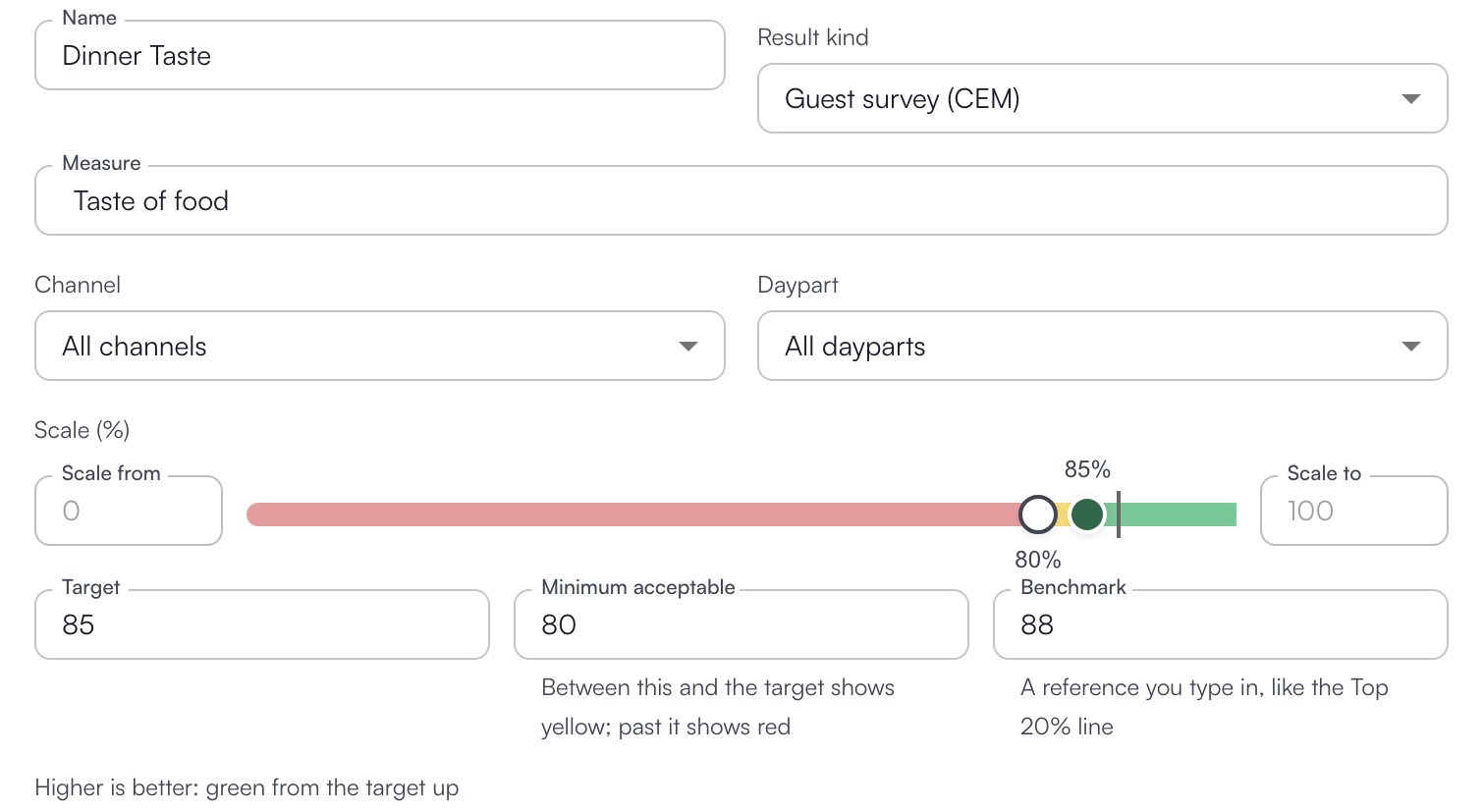
Say the store wants dinner taste on the guest survey at 85% or better each month.
1. On the **Lagging** view, click **New lagging goal**.
2. Enter a **Name**, for example "Dinner Taste".
3. Under **Result kind**, pick what kind of report the numbers come from. This can't be changed after saving, and neither can a custom goal's **Measured as**.
4. For a guest survey, pick the **Measure** (**Taste of food**), and narrow it with **Channel** (**Drive-thru**, **Dine in**, **Carry out**, **Mobile**) or **Daypart** (**Breakfast**, **Lunch**, **Snack**, **Dinner**) when the goal is about one slice of the report. Sales and Transactions offer **Daypart** only.
5. On the **Scale**, enter the **Target** (85). The scale shows it as a marker you can also drag.
6. Add a **Minimum acceptable** value, a second marker; the goal's page labels it **Floor**. Between it and the target the goal shows **Near target**; past it, **Below target**. Which way is better is read from the two markers: a target above the minimum means higher is better, a target below it means lower is better.
7. Add a **Benchmark** if you want a reference line on the chart, such as a top store's figure.
8. Under **Assessed**, pick the period one result covers: **Weekly**, **Monthly**, **Quarterly**, **Every six months**, **Yearly**, **Repeating** (every so many days, weeks or months from a **Starting on** date) or **Custom range** (one fixed **From** and **To**).
9. Click **Save goal**.
 | Result kind | Measured as | Scale |
| - | - | - |
| **Guest survey** | Percent, with a response count | 0 to 100 |
| **Sales** | Dollars | Type the top |
| **Transactions** | Count | Type the top |
| **Smart Shop**, **Food quality visit** | Score | Both ends editable, 0 to 100 to start |
| **EcoSure** | Score | Both ends editable, 1 to 9 to start, lower is better |
| **Custom** | Your pick: **Count**, **Percent**, **Dollars**, **Score** or **Minutes** | Type both ends |
Results are entered later, from the goal's page or the Lagging view; see [Add data](/goals/add-data).
## Decide who owns and who sees a goal
**Who owns it** is who is accountable: **This location** unless you pick a **Department**, **Group** or **Person** from the org chart.
**Applies to** has one box, **This location only**, ticked by default. Untick it and the goal applies to every store in the organization, each with its own numbers; the owner then reads **Whole organization**.
**Visible to everyone** is ticked by default. Untick it and pick **Roles that can see this goal**; everyone else loses the goal from their list, the matrix and scoreboards. People who can manage goals see every goal regardless.
## Link a leading goal to the result it drives
Linked goals show as arrows on the Matrix, so you can see whether the daily work is moving the result. On a leading goal, **Drives these results** lists the lagging goals this behavior moves. A lagging goal has two lists: **Driven by**, the leading goals or other results that move it, and **Drives**, the results it moves in turn. Two links are refused: a goal that would both drive and be driven by the same goal, and a chain of links that leads back to where it started.
**Areas responsible** ties the goal to one or more areas of the store, which is what the **Area** filter on the Leading and Lagging views uses. **Pillars** records which pillar or two the goal feeds; it is a label for now and changes no score.
## Edit or archive a goal
Open the goal from its card and click **Edit**. Change any field and **Save goal**; **Cancel** returns to the goal's page. A goal that needs a different **How it is counted**, **Result kind** or **Measured as** is archived and created again. What archiving does is described in [Open a goal](/goals/overview#open-a-goal).
## Who can do what
If a button described on this page is missing for you, this table names the permission behind it.
| If you notice this | The permission behind it |
| - | - |
| No **New leading goal** or **New lagging goal** button, and no **Edit** or **Archive** on a goal | Goals > Manage Goals |
| The **Lagging** view is missing | Goals > View Lagging Goals (Manage Goals includes it) |
If you're missing something here, ask whoever manages roles in your organization to turn it on. See [Roles](/team/roles).
## Common questions
Type it. A measure typed into the field is kept under that name, and reports naming it match it when results are entered.
**Visible to everyone** is unticked and their role is not in **Roles that can see this goal**, or it is a lagging goal and their role lacks Goals > View Lagging Goals.
| Result kind | Measured as | Scale |
| - | - | - |
| **Guest survey** | Percent, with a response count | 0 to 100 |
| **Sales** | Dollars | Type the top |
| **Transactions** | Count | Type the top |
| **Smart Shop**, **Food quality visit** | Score | Both ends editable, 0 to 100 to start |
| **EcoSure** | Score | Both ends editable, 1 to 9 to start, lower is better |
| **Custom** | Your pick: **Count**, **Percent**, **Dollars**, **Score** or **Minutes** | Type both ends |
Results are entered later, from the goal's page or the Lagging view; see [Add data](/goals/add-data).
## Decide who owns and who sees a goal
**Who owns it** is who is accountable: **This location** unless you pick a **Department**, **Group** or **Person** from the org chart.
**Applies to** has one box, **This location only**, ticked by default. Untick it and the goal applies to every store in the organization, each with its own numbers; the owner then reads **Whole organization**.
**Visible to everyone** is ticked by default. Untick it and pick **Roles that can see this goal**; everyone else loses the goal from their list, the matrix and scoreboards. People who can manage goals see every goal regardless.
## Link a leading goal to the result it drives
Linked goals show as arrows on the Matrix, so you can see whether the daily work is moving the result. On a leading goal, **Drives these results** lists the lagging goals this behavior moves. A lagging goal has two lists: **Driven by**, the leading goals or other results that move it, and **Drives**, the results it moves in turn. Two links are refused: a goal that would both drive and be driven by the same goal, and a chain of links that leads back to where it started.
**Areas responsible** ties the goal to one or more areas of the store, which is what the **Area** filter on the Leading and Lagging views uses. **Pillars** records which pillar or two the goal feeds; it is a label for now and changes no score.
## Edit or archive a goal
Open the goal from its card and click **Edit**. Change any field and **Save goal**; **Cancel** returns to the goal's page. A goal that needs a different **How it is counted**, **Result kind** or **Measured as** is archived and created again. What archiving does is described in [Open a goal](/goals/overview#open-a-goal).
## Who can do what
If a button described on this page is missing for you, this table names the permission behind it.
| If you notice this | The permission behind it |
| - | - |
| No **New leading goal** or **New lagging goal** button, and no **Edit** or **Archive** on a goal | Goals > Manage Goals |
| The **Lagging** view is missing | Goals > View Lagging Goals (Manage Goals includes it) |
If you're missing something here, ask whoever manages roles in your organization to turn it on. See [Roles](/team/roles).
## Common questions
Type it. A measure typed into the field is kept under that name, and reports naming it match it when results are entered.
**Visible to everyone** is unticked and their role is not in **Roles that can see this goal**, or it is a lagging goal and their role lacks Goals > View Lagging Goals.