> ## Documentation Index
> Fetch the complete documentation index at: https://docs.levelset.io/llms.txt
> Use this file to discover all available pages before exploring further.
# Scoreboards
> Arrange goal cards, today's setup and a message on a scoreboard, and show it on a TV in the store
A **scoreboard** is a screen of goal cards, laid out for a TV in the store, so the team sees today's counts and the store's results without opening the dashboard. A scoreboard can also carry today's **setup** (Levelset's plan of who works which position) for one zone and a message. Tallies logged anywhere update the scoreboard at once. Open **Performance > Goals** and click the **Scoreboards** tab; each store has its own scoreboards. If the tab shows a notice instead, the feature is not on for your organization; ask your manager.
## Create a scoreboard
Click **New scoreboard**, name it (for example "Front counter") and click **Create**. The scoreboard opens empty as a 16 by 8 grid. **Rename** and **Remove** sit at the top right. Each scoreboard is a tab above the grid; click one to switch.
## Add goal cards
Click **Edit**, then **Add a goal**. Search or scroll the cards, each a preview of how the goal will look, and click one to place it in the first free space. Click **Done** when finished; the layout saves as you go.
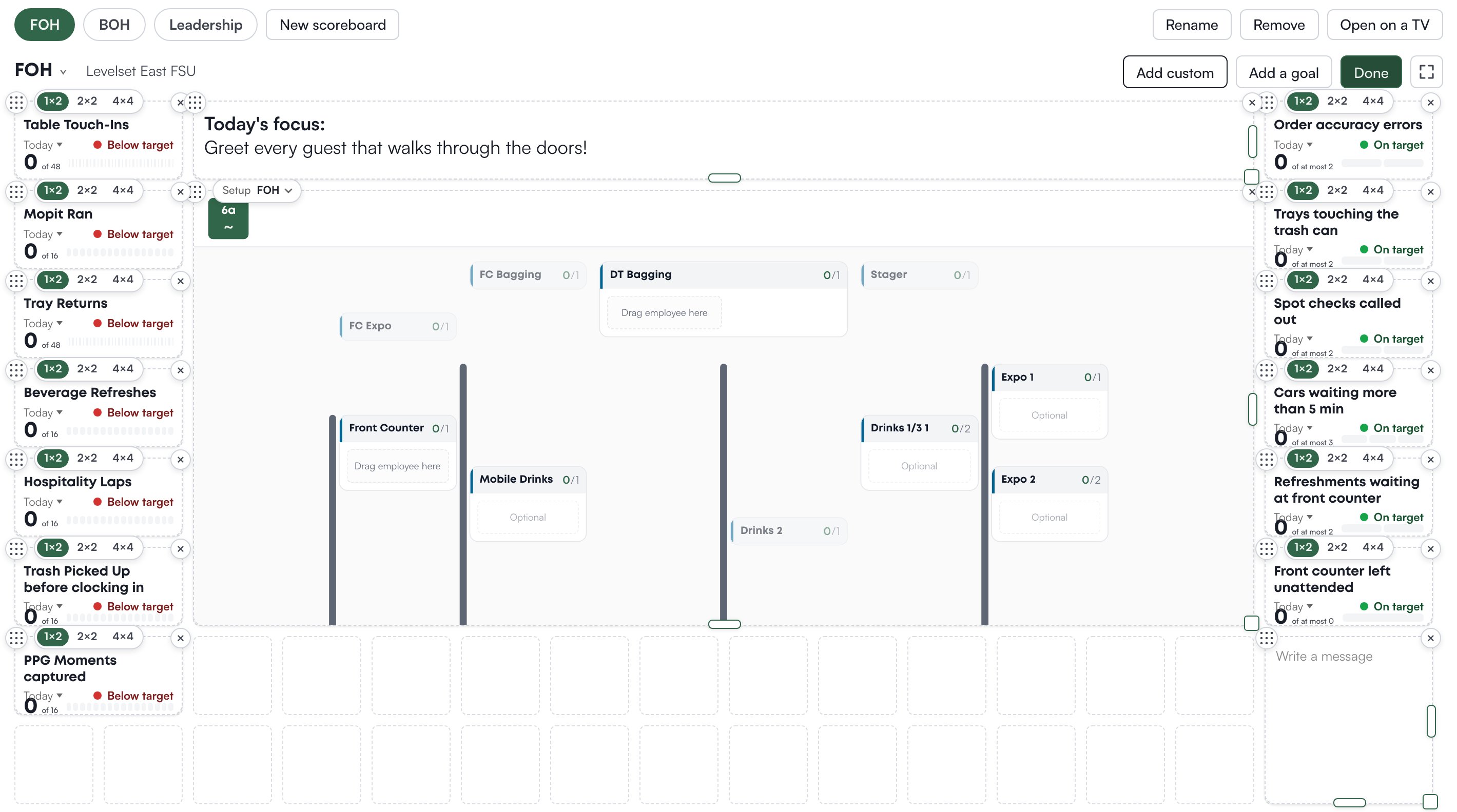 While editing, each card has a drag handle to move it (the other cards flow around it), a size bar with **1×2**, **2×2** and **4×4**, and an **×** to remove it. Click the card itself to open **Change goal** and swap in a different goal.
A card's subtitle is its timeframe, and it is a menu: a leading goal offers **Today**, **This week**, **This month** and longer windows up to **Past year**; a lagging goal starts at its own period, so a monthly goal offers **This month**, **Last 3 months** and **Last 12 months**. On **Today** a leading card shows the count against the target as rectangles; on a longer timeframe it shows days won against days finished, with the won rate at 4×4. A lagging card shows the latest result, the change against the period before, and a trend line, or a meter on the goal's scale when there is one result.
The status word on a card (**On target**, **Near target**, **Below target** or **No data yet**) is the scoreboard's own reading, worked out from the card's timeframe with its own thresholds, so it can differ from the status the Goals page shows for the same goal.
## Add the setup or a message
In **Add a goal**, the last card is **Setup**: today's setup for one zone, drawn exactly as the setup page shows it. Place it, then pick the zone from the **Setup** menu on the card and drag its right or bottom edge to resize it a block at a time.
**Add custom** places a message card. Type straight into it; the toolbar offers **Bold**, **Italic** and a text size (**S**, **M**, **L**). It resizes like the setup card. A message left blank does not show on the TV.
## Show it on a TV
Two ways, both from the scoreboard:
* The corner-arrows button (**Show on a screen**) puts this browser into full screen: the scoreboard alone, with the date and clock in the bar. **Exit** leaves it.
* **Open on a TV** opens the scoreboard in a new tab as a page of its own, with no dashboard around it. Copy the link, open it on the TV's browser, and sign in with a Levelset account that can see this store. Leave it open: tallies appear as they are logged, the day rolls over at midnight, and a layout change made on the dashboard reaches the screen within a minute without a reload.
## Who can do what
If a button described on this page is missing for you, this table names the permission behind it.
| If you notice this | The permission behind it |
| ---------------------------------------------------------------- | ---------------------------------------------------------------------------------------------------------------------------------------------------------- |
| No **New scoreboard**, **Edit**, **Rename** or **Remove** | Goals > Edit Scoreboards |
| Some cards a colleague sees are missing from the same scoreboard | Goals > View Lagging Goals (lagging goals are hidden without it), or the goal is limited to certain roles (**Roles that can see this goal** in its editor) |
If you're missing something here, ask whoever manages roles in your organization.
## Common questions
The scoreboard says **No room to grow that way**. Move or shrink the cards beside it first.
No. A scoreboard belongs to the store picked at the top of the dashboard and shows that store's goals and setup.
The TV page re-reads the layout once a minute. Wait a minute, or reload the page.
No. The TV page shows the scoreboard only.
While editing, each card has a drag handle to move it (the other cards flow around it), a size bar with **1×2**, **2×2** and **4×4**, and an **×** to remove it. Click the card itself to open **Change goal** and swap in a different goal.
A card's subtitle is its timeframe, and it is a menu: a leading goal offers **Today**, **This week**, **This month** and longer windows up to **Past year**; a lagging goal starts at its own period, so a monthly goal offers **This month**, **Last 3 months** and **Last 12 months**. On **Today** a leading card shows the count against the target as rectangles; on a longer timeframe it shows days won against days finished, with the won rate at 4×4. A lagging card shows the latest result, the change against the period before, and a trend line, or a meter on the goal's scale when there is one result.
The status word on a card (**On target**, **Near target**, **Below target** or **No data yet**) is the scoreboard's own reading, worked out from the card's timeframe with its own thresholds, so it can differ from the status the Goals page shows for the same goal.
## Add the setup or a message
In **Add a goal**, the last card is **Setup**: today's setup for one zone, drawn exactly as the setup page shows it. Place it, then pick the zone from the **Setup** menu on the card and drag its right or bottom edge to resize it a block at a time.
**Add custom** places a message card. Type straight into it; the toolbar offers **Bold**, **Italic** and a text size (**S**, **M**, **L**). It resizes like the setup card. A message left blank does not show on the TV.
## Show it on a TV
Two ways, both from the scoreboard:
* The corner-arrows button (**Show on a screen**) puts this browser into full screen: the scoreboard alone, with the date and clock in the bar. **Exit** leaves it.
* **Open on a TV** opens the scoreboard in a new tab as a page of its own, with no dashboard around it. Copy the link, open it on the TV's browser, and sign in with a Levelset account that can see this store. Leave it open: tallies appear as they are logged, the day rolls over at midnight, and a layout change made on the dashboard reaches the screen within a minute without a reload.
## Who can do what
If a button described on this page is missing for you, this table names the permission behind it.
| If you notice this | The permission behind it |
| ---------------------------------------------------------------- | ---------------------------------------------------------------------------------------------------------------------------------------------------------- |
| No **New scoreboard**, **Edit**, **Rename** or **Remove** | Goals > Edit Scoreboards |
| Some cards a colleague sees are missing from the same scoreboard | Goals > View Lagging Goals (lagging goals are hidden without it), or the goal is limited to certain roles (**Roles that can see this goal** in its editor) |
If you're missing something here, ask whoever manages roles in your organization.
## Common questions
The scoreboard says **No room to grow that way**. Move or shrink the cards beside it first.
No. A scoreboard belongs to the store picked at the top of the dashboard and shows that store's goals and setup.
The TV page re-reads the layout once a minute. Wait a minute, or reload the page.
No. The TV page shows the scoreboard only.