> ## Documentation Index
> Fetch the complete documentation index at: https://docs.levelset.io/llms.txt
> Use this file to discover all available pages before exploring further.
# Org Chart
> Your team laid out by tier, for one location or the whole organization
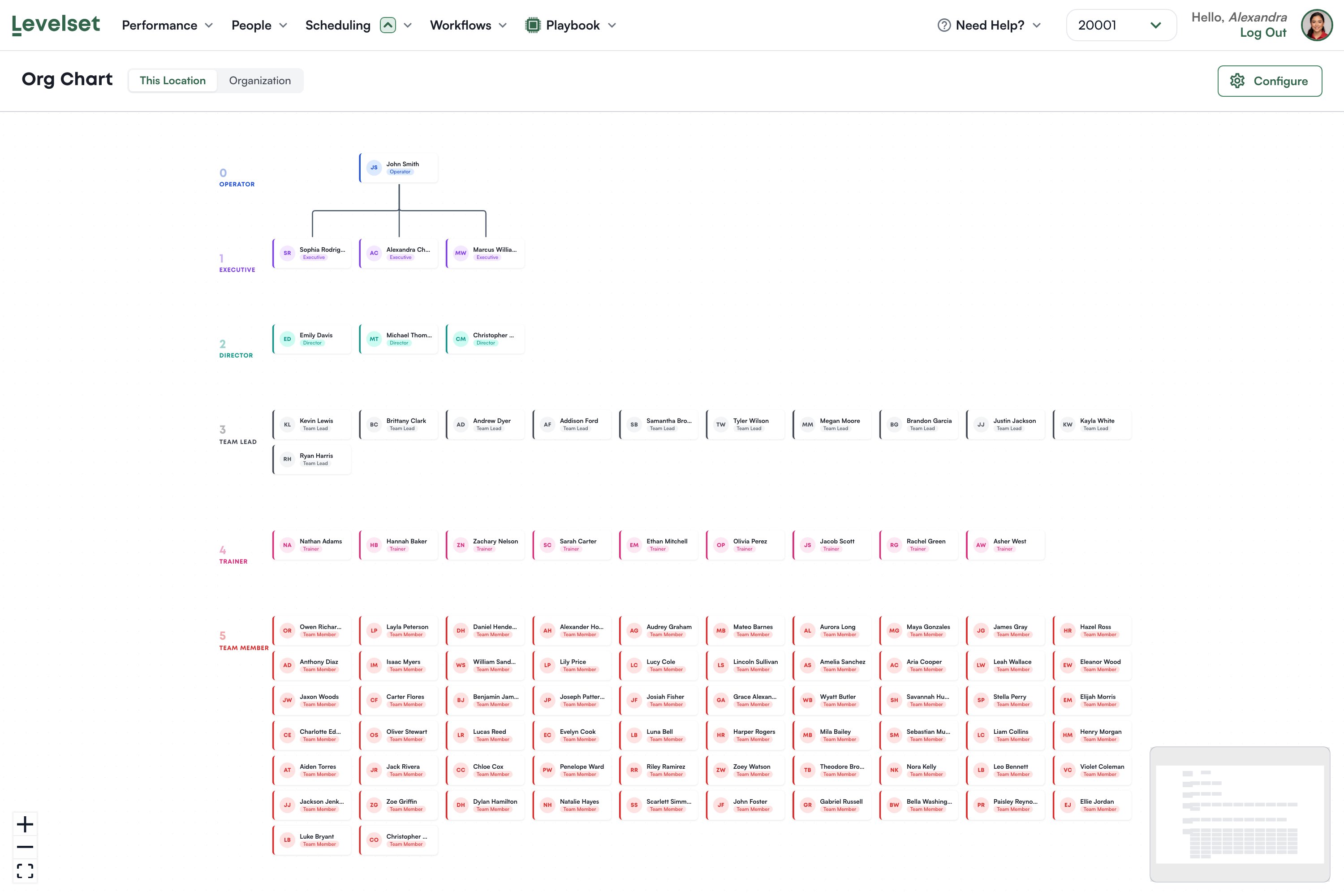
The Org Chart draws your team by role tier: Operator at the top, then each level beneath.
Open **People > Org Chart**. It is included on both plans.
 ## How it is built
Two separate things decide what you see, and knowing which is which saves a lot of confusion.
**The bands come from roles.** Each tier on the left is one of your org chart roles, numbered by its level, and everyone holding that role sits in that band. That part is a direct picture of your [role hierarchy](/organization-settings/roles), so someone in the wrong band has the wrong role on the Roster.
**The connecting lines come from reporting relationships you set.** Levelset does not guess them from the tiers. A line appears when someone has a supervisor recorded, either directly or through a group. If your chart is a set of tidy bands with almost no lines, that is not a bug: nobody has been given a supervisor yet.
Departments are drawn as a dashed box around a set of people. They group visually and do not create reporting lines.
**This Location** and **Organization** switch between the location selected in the header and everyone across your organization. The second is the one to use if you run more than one restaurant.
Zoom with the controls at the bottom left, and use the minimap at the bottom right to move around a large chart.
## What a card shows
A person's initials, their name, and their role. Click one to open their detail panel.
Cards show the legal name. The **Goes by** name you set on the Roster appears in most of Levelset but not here, so someone you know as Alex will appear as Alexander.
## Pay
The org chart is one of only two places pay appears, the other being the schedule, and the rule is tighter than a single permission.
You need Roster > View Pay Rates or Manage Pay Settings on your level. Even then you see pay only for **people below your own level**. Not your peers, and not yourself. Everyone else sees no pay row at all.
So a Director looking at this chart sees what their team earns and not what the other Directors earn. Worth knowing before you put the chart on a screen in a shared office.
## Configure
**Configure** opens a panel with three tabs: **Departments**, **Role Groups** and **Relationships**. Relationships is where you say who reports to whom, which is what draws the lines.
Editing is done through these forms rather than by dragging cards around.
You can only edit people below your own level. If you hold the edit permission but your user account is not linked to a team member record, Levelset cannot work out your level and you will not be able to edit anyone. Linking your account to your employee record on the Roster fixes it.
## Reading it well
The shape tells you things a roster list does not. A tier with one person in it is a single point of failure. A very wide Trainer band with a thin Team Lead band above it is a promotion pipeline that is about to stall. A team member with no role does not appear at all.
## Common questions
They are inactive, or they are at a different location and you are on This Location. Inactive team members are always hidden and there is no toggle to show them.
They have no supervisor recorded. Set one on the Relationships tab under Configure and they will connect.
Their role is not one of your configured org chart roles, so there is no tier for it. Fix the role on the Roster or add it in [Roles](/organization-settings/roles).
Tier order comes from your roles. Reorder them in [Roles](/organization-settings/roles) and the chart follows.
This view has not adopted the Goes by name yet. The Roster, ratings and discipline records all use it.
Your permission level does not include a pay permission. That is deliberate.
Yes, on the Relationships tab under Configure. Set who someone reports to and the line appears. Levelset never infers it from the tiers.
That number counts people whose supervisor is set to them individually. People connected through a group are not included in it.
## How it is built
Two separate things decide what you see, and knowing which is which saves a lot of confusion.
**The bands come from roles.** Each tier on the left is one of your org chart roles, numbered by its level, and everyone holding that role sits in that band. That part is a direct picture of your [role hierarchy](/organization-settings/roles), so someone in the wrong band has the wrong role on the Roster.
**The connecting lines come from reporting relationships you set.** Levelset does not guess them from the tiers. A line appears when someone has a supervisor recorded, either directly or through a group. If your chart is a set of tidy bands with almost no lines, that is not a bug: nobody has been given a supervisor yet.
Departments are drawn as a dashed box around a set of people. They group visually and do not create reporting lines.
**This Location** and **Organization** switch between the location selected in the header and everyone across your organization. The second is the one to use if you run more than one restaurant.
Zoom with the controls at the bottom left, and use the minimap at the bottom right to move around a large chart.
## What a card shows
A person's initials, their name, and their role. Click one to open their detail panel.
Cards show the legal name. The **Goes by** name you set on the Roster appears in most of Levelset but not here, so someone you know as Alex will appear as Alexander.
## Pay
The org chart is one of only two places pay appears, the other being the schedule, and the rule is tighter than a single permission.
You need Roster > View Pay Rates or Manage Pay Settings on your level. Even then you see pay only for **people below your own level**. Not your peers, and not yourself. Everyone else sees no pay row at all.
So a Director looking at this chart sees what their team earns and not what the other Directors earn. Worth knowing before you put the chart on a screen in a shared office.
## Configure
**Configure** opens a panel with three tabs: **Departments**, **Role Groups** and **Relationships**. Relationships is where you say who reports to whom, which is what draws the lines.
Editing is done through these forms rather than by dragging cards around.
You can only edit people below your own level. If you hold the edit permission but your user account is not linked to a team member record, Levelset cannot work out your level and you will not be able to edit anyone. Linking your account to your employee record on the Roster fixes it.
## Reading it well
The shape tells you things a roster list does not. A tier with one person in it is a single point of failure. A very wide Trainer band with a thin Team Lead band above it is a promotion pipeline that is about to stall. A team member with no role does not appear at all.
## Common questions
They are inactive, or they are at a different location and you are on This Location. Inactive team members are always hidden and there is no toggle to show them.
They have no supervisor recorded. Set one on the Relationships tab under Configure and they will connect.
Their role is not one of your configured org chart roles, so there is no tier for it. Fix the role on the Roster or add it in [Roles](/organization-settings/roles).
Tier order comes from your roles. Reorder them in [Roles](/organization-settings/roles) and the chart follows.
This view has not adopted the Goes by name yet. The Roster, ratings and discipline records all use it.
Your permission level does not include a pay permission. That is deliberate.
Yes, on the Relationships tab under Configure. Set who someone reports to and the line appears. Levelset never infers it from the tiers.
That number counts people whose supervisor is set to them individually. People connected through a group are not included in it.