> ## Documentation Index
> Fetch the complete documentation index at: https://docs.levelset.io/llms.txt
> Use this file to discover all available pages before exploring further.
# Store details
> Set one store's logo and connect its Google Maps listing, which brings in the store's hours and its Google and Yelp reviews
**Store details** are the facts about one store that Levelset uses everywhere else: the logo shown for it in the dashboard, and its Google Maps listing, which supplies its opening hours and its reviews. They belong to one store only. Settings that apply to every store in your organization, such as the team member website, are on [Team links](/organization/team-links#set-the-team-member-website).
Open **Organization > Set up > Store details**. The page shows the store selected at the top of the sidebar, so switch stores there to set up another one.
## Upload the store logo
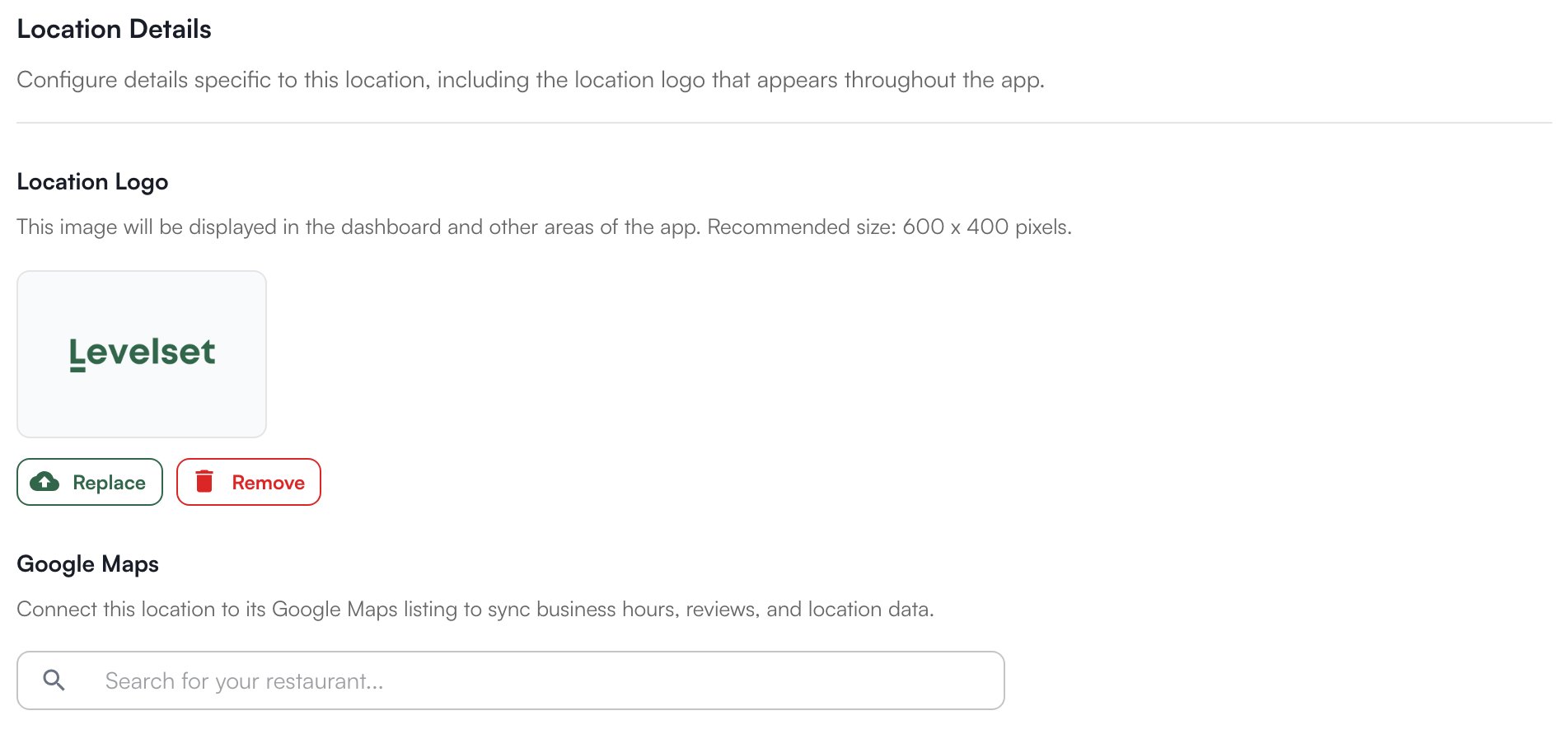
Say your organization has added a store and you are setting it up. Under **Location Logo**, click the upload area and pick a PNG or JPG of 5MB or less; 600 by 400 pixels is the recommended size. The logo saves as soon as it uploads and appears in the dashboard and other parts of Levelset for that store. **Replace** and **Remove** then sit under the image.
 ## Connect the Google Maps listing
Next, connect the new store to its **Google Maps listing**, the store's public page on Google Maps. That gives Levelset the store's opening hours and its reviews without anyone typing them in.
1. Under **Google Maps**, type the store's name or address into the search box, as a customer would.
2. Pick the store from the results. Two stores in one city can look alike, so check the address under each name.
3. Click **Connect**.
The section then reads **Connected** and shows the store's hours by day. Levelset uses those hours elsewhere: a shift added to the schedule is suggested to end by closing time, and on goals a day the store is closed counts as neither won nor lost. Next to the hours, **Reviews** shows each source Levelset reads: **Google** and **Yelp** with their rating and number of reviews, and **Facebook** and **Apple Maps** marked **Coming soon**. Yelp shows **Not found** when no Yelp page matched the store.
Below that, **View listing** opens the store on Google Maps and **Synced** shows when Levelset last read it. Click **Sync** after the store changes its hours on Google, and **Disconnect** to remove the connection, for example when the wrong store was picked.
## Who can do what
| If you notice this | The permission behind it |
| - | - |
| **Store details** is missing from the **Organization** menu | Organization > View Store and Organization Details |
| The page opens, but you can't change the logo, and there is no search box, **Sync** or **Disconnect** | Organization > Manage Store Details |
If you're missing something here, ask whoever manages roles in your organization to turn it on. See [Roles](/team/roles).
## Common questions
The file is not an image, or it is larger than 5MB. The message on the page says which, and the old logo stays in place. Save the logo as a PNG or JPG under 5MB and upload it again.
Search by the street address instead of the store's name. If it still does not appear, the store may not have a Google Maps listing yet; the rest of Levelset works without one.
Levelset shows what Google had at the last sync. Update the hours on Google, then click **Sync**.
The connection is not available for your organization yet. Email [support@levelset.io](mailto:support@levelset.io).
## Connect the Google Maps listing
Next, connect the new store to its **Google Maps listing**, the store's public page on Google Maps. That gives Levelset the store's opening hours and its reviews without anyone typing them in.
1. Under **Google Maps**, type the store's name or address into the search box, as a customer would.
2. Pick the store from the results. Two stores in one city can look alike, so check the address under each name.
3. Click **Connect**.
The section then reads **Connected** and shows the store's hours by day. Levelset uses those hours elsewhere: a shift added to the schedule is suggested to end by closing time, and on goals a day the store is closed counts as neither won nor lost. Next to the hours, **Reviews** shows each source Levelset reads: **Google** and **Yelp** with their rating and number of reviews, and **Facebook** and **Apple Maps** marked **Coming soon**. Yelp shows **Not found** when no Yelp page matched the store.
Below that, **View listing** opens the store on Google Maps and **Synced** shows when Levelset last read it. Click **Sync** after the store changes its hours on Google, and **Disconnect** to remove the connection, for example when the wrong store was picked.
## Who can do what
| If you notice this | The permission behind it |
| - | - |
| **Store details** is missing from the **Organization** menu | Organization > View Store and Organization Details |
| The page opens, but you can't change the logo, and there is no search box, **Sync** or **Disconnect** | Organization > Manage Store Details |
If you're missing something here, ask whoever manages roles in your organization to turn it on. See [Roles](/team/roles).
## Common questions
The file is not an image, or it is larger than 5MB. The message on the page says which, and the old logo stays in place. Save the logo as a PNG or JPG under 5MB and upload it again.
Search by the street address instead of the store's name. If it still does not appear, the store may not have a Google Maps listing yet; the rest of Levelset works without one.
Levelset shows what Google had at the last sync. Update the hours on Google, then click **Sync**.
The connection is not available for your organization yet. Email [support@levelset.io](mailto:support@levelset.io).