> ## Documentation Index
> Fetch the complete documentation index at: https://docs.levelset.io/llms.txt
> Use this file to discover all available pages before exploring further.
# Classic View
> One row per person with their current average in each position, the view by position and by leader, and the scorecard link for a screen in the store
**Classic View** answers "how is each person doing in each position right now". Where **SmartView** lists every rating one by one over a date range, Classic View has one row per team member, one column per position, and in each cell that person's average over their **last four ratings** in that position, whenever those were given. For what a rating is and how it is scored, see [Positional Excellence](/positional-excellence/overview).
Open **Performance > Positional Excellence** and click the **Classic View** tab. It shows the store selected at the top of the sidebar and has three tabs of its own: **Overview**, **Position View** and **Leadership View**. Say you want to know who is ready to work Front Counter on their own (use your own position names); the sections below follow that question.
## Read the Overview
The **Overview** tab lists every active team member in the selected area. The area switch at the top has a button for Front of House, one for Back of House, and one for each area your organization added that has a rated position. Each row shows **Last Rating**, the date of their most recent rating, a cell per position, **Overall Avg** and **# Ratings**.
A position cell averages the person's last four ratings in that position. **Overall Avg** averages their last four ratings across every position. There is no date filter: someone rated four times in June and not since still shows their June average today, so read **Last Rating** with the number. A blank cell means no ratings in that position, not a low score. Cells are colored by your organization's rating scale, and the **Rating Scale** button shows the three bands with their current cut-offs.
The **Rating Count** dropdown, **Rolling 90 days** or **This month**, changes only the **# Ratings** column. The averages do not change.
Click the arrow at the start of a row to expand it. Under the row, each of the person's last four ratings is listed with who gave it, the date, the position, the criteria scores and the average.
Ratings are pulled from every store in your organization, so a person who works at two stores has one row with their combined history.
## See one position by criteria
The **Position View** tab narrows the table to one position, chosen in the **Position** dropdown, Front Counter in the example, and replaces the position columns with that position's criteria, named as your organization wrote them. Use it to see which criterion is pulling a person's average down. Everyone who can be rated in the position is listed, including people with no ratings yet; someone currently kept out of that position is left off.
## See how each leader rates
The **Leadership View** tab flips the table to the people giving ratings. Each row is a person whose role can submit ratings, or everyone at the store when your organization has not chosen rating roles, and the numbers are the averages of the ratings they gave. Expand a row to see their last ten ratings. Someone whose every score is a 3 stands out here.
## Put the scorecard on a screen in the store
Anyone who can open Classic View sees the **Embed** button. It gives you a version of this table that opens with no sign-in, for a tablet or a TV in the back of house: in the window, **iPad Display** shows a QR code to scan and the link to copy. The link opens the same three tabs, without the **Embed** button, headed with the store's name.
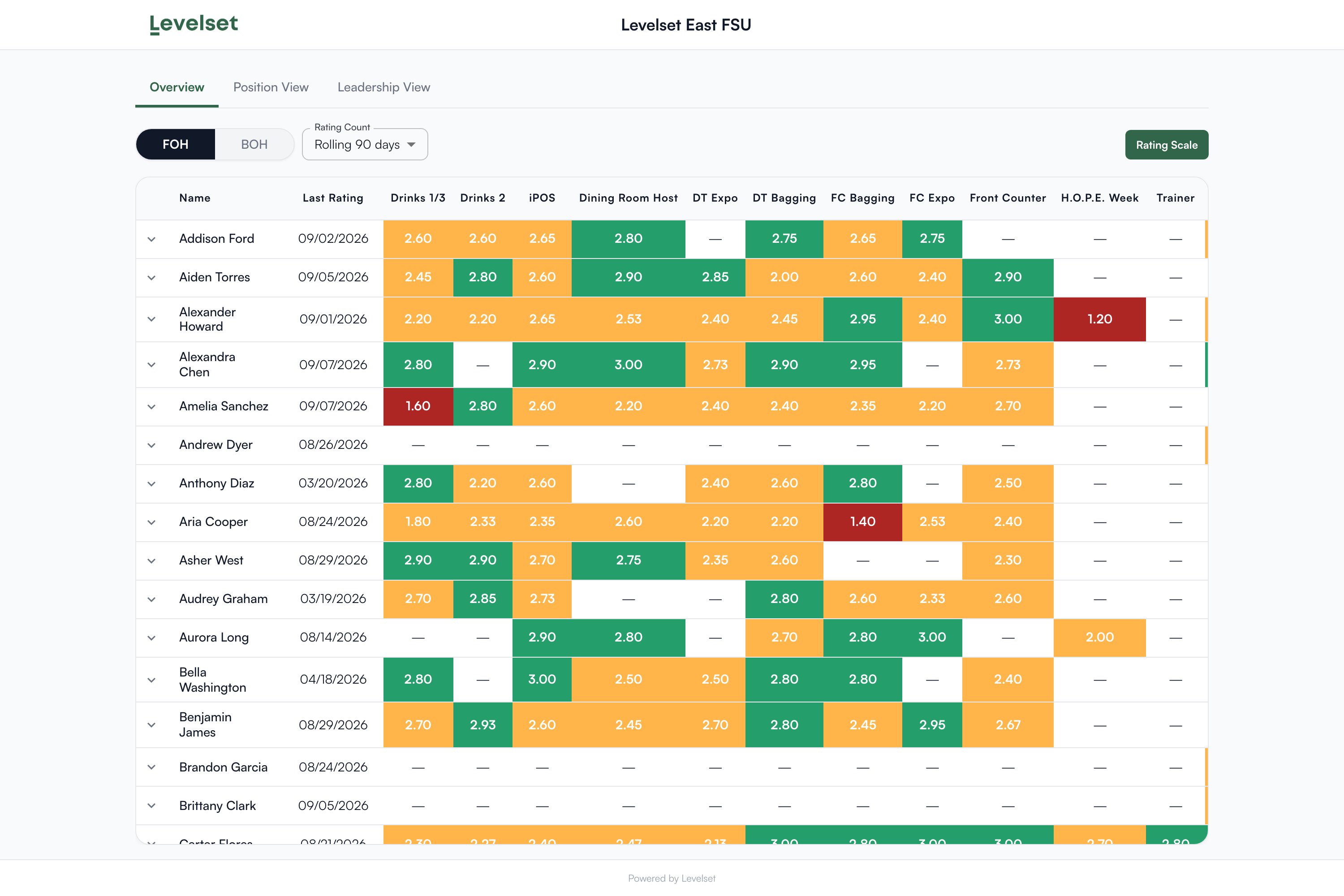 Anyone holding the link can open the scorecard, and it shows every active team member by name, their average in each position, their last rating date and, when a row is expanded, their last four ratings with who gave each one. It does not show notes, pay, discipline or contact details. The code at the end of the link is the same code that opens your store's mobile web app at a different address, so anyone who has the scorecard link can also open the store's rating and discipline forms; share it as carefully as you would share the mobile web app link. See [Team links](/organization/team-links).
## Who can do what
Classic View is part of the Positional Excellence page, and the **Embed** button needs nothing more.
| If you notice this | The permission behind it |
| - | - |
| **Positional Excellence** is missing from the **Performance** menu | Positional Excellence > View Dashboard |
If you're missing something here, ask whoever manages roles in your organization to turn it on. See [Roles](/team/roles).
## Common questions
Classic View lists active team members at the store selected at the top of the sidebar who belong to the area picked on the area switch. A missing person is inactive, at another store, or in another area. Their area is set on the **Team members** tab of **People > Team & Access**; see [Team members](/team/team-members).
Columns are the active positions in that area with **Use for positional ratings** switched on. Check the position under **Performance > Set up > Positions and ratings**; see [Positions and ratings](/positional-excellence/settings).
Both are right. Classic View averages a person's last four ratings whatever the position, with no date limit. The Leaderboard averages each position separately inside the period you chose, so a position they rarely work counts as much as one they always work.
Anyone holding the link can open the scorecard, and it shows every active team member by name, their average in each position, their last rating date and, when a row is expanded, their last four ratings with who gave each one. It does not show notes, pay, discipline or contact details. The code at the end of the link is the same code that opens your store's mobile web app at a different address, so anyone who has the scorecard link can also open the store's rating and discipline forms; share it as carefully as you would share the mobile web app link. See [Team links](/organization/team-links).
## Who can do what
Classic View is part of the Positional Excellence page, and the **Embed** button needs nothing more.
| If you notice this | The permission behind it |
| - | - |
| **Positional Excellence** is missing from the **Performance** menu | Positional Excellence > View Dashboard |
If you're missing something here, ask whoever manages roles in your organization to turn it on. See [Roles](/team/roles).
## Common questions
Classic View lists active team members at the store selected at the top of the sidebar who belong to the area picked on the area switch. A missing person is inactive, at another store, or in another area. Their area is set on the **Team members** tab of **People > Team & Access**; see [Team members](/team/team-members).
Columns are the active positions in that area with **Use for positional ratings** switched on. Check the position under **Performance > Set up > Positions and ratings**; see [Positions and ratings](/positional-excellence/settings).
Both are right. Classic View averages a person's last four ratings whatever the position, with no date limit. The Leaderboard averages each position separately inside the period you chose, so a position they rarely work counts as much as one they always work.