> ## Documentation Index
> Fetch the complete documentation index at: https://docs.levelset.io/llms.txt
> Use this file to discover all available pages before exploring further.
# Reporting
> The discipline report: current and former team members with their points, and a PDF of one person's record
Reporting is where you pull one person's discipline record as a PDF, usually because someone outside the store has asked for it. Open **Performance > Reporting**. The page is headed **HR Reporting** and has one report, **Discipline**, for the store selected in the header. For how infractions, points and the points window work, see [Discipline](/discipline/overview).
## Find a person
The report is split into two collapsed lists; click the one you need to open it.
**Active Employees** lists everyone currently on the roster with their **Role**, **Hire Date**, **Last Infraction** and **Points**, their current points, colored against your organization's action thresholds so a number close to the next threshold stands out.
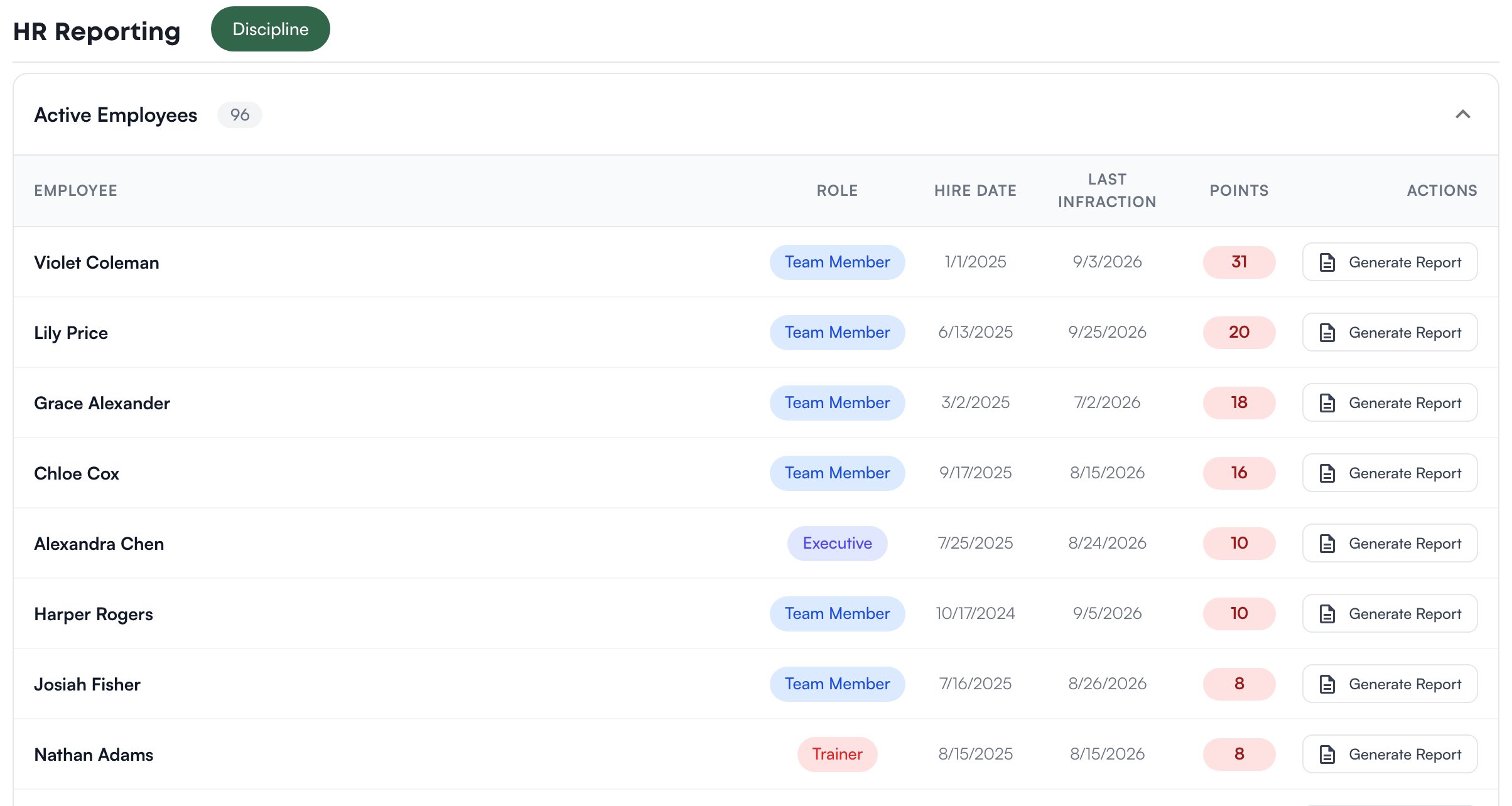 **Inactive Employees** lists people who have left, with their role, hire date, the date they left, **Last Points**, their points as they stood when they left, and the reason recorded for leaving. Last Points is left blank, with a note why, when the person has discipline records at a store you can't reach.
There are no charts, totals or filters here. For the day-to-day view of who is trending, use [Discipline](/discipline/overview).
## Generate a PDF
Click **Generate Report** on a person's row. Levelset builds a PDF of their discipline record and downloads it, named for the person and today's date. It works for current and former team members alike.
The PDF is headed **Discipline Report** with the person's name, role, hire date and current points, followed by a **Discipline History** of every infraction and action. One sentence under the current points names the date the points window starts, the person's lifetime total, and how many points have rolled off and no longer count; the history entries themselves are not marked either way.
## What decides the numbers
The store comes from the dropdown in the header; switch stores to report on another. Current points follow your organization's points window, and only infractions filed at stores you have access to are counted.
## Who can do what
If **Reporting** is missing from your **Performance** menu, the permission behind it is HR Reporting > View HR Reporting. If you're missing something here, ask whoever manages roles in your organization.
## Common questions
They left from a different store. Switch stores in the header.
Current points count only infractions inside the points window. Older ones are still in the PDF's history, and the sentence under the current points says how many points have rolled off.
Not here. Positional excellence ratings are read and exported from [Positional Excellence](/positional-excellence/overview).
Not yet. This page and its PDF are English only.
**Inactive Employees** lists people who have left, with their role, hire date, the date they left, **Last Points**, their points as they stood when they left, and the reason recorded for leaving. Last Points is left blank, with a note why, when the person has discipline records at a store you can't reach.
There are no charts, totals or filters here. For the day-to-day view of who is trending, use [Discipline](/discipline/overview).
## Generate a PDF
Click **Generate Report** on a person's row. Levelset builds a PDF of their discipline record and downloads it, named for the person and today's date. It works for current and former team members alike.
The PDF is headed **Discipline Report** with the person's name, role, hire date and current points, followed by a **Discipline History** of every infraction and action. One sentence under the current points names the date the points window starts, the person's lifetime total, and how many points have rolled off and no longer count; the history entries themselves are not marked either way.
## What decides the numbers
The store comes from the dropdown in the header; switch stores to report on another. Current points follow your organization's points window, and only infractions filed at stores you have access to are counted.
## Who can do what
If **Reporting** is missing from your **Performance** menu, the permission behind it is HR Reporting > View HR Reporting. If you're missing something here, ask whoever manages roles in your organization.
## Common questions
They left from a different store. Switch stores in the header.
Current points count only infractions inside the points window. Older ones are still in the PDF's history, and the sentence under the current points says how many points have rolled off.
Not here. Positional excellence ratings are read and exported from [Positional Excellence](/positional-excellence/overview).
Not yet. This page and its PDF are English only.