> ## Documentation Index
> Fetch the complete documentation index at: https://docs.levelset.io/llms.txt
> Use this file to discover all available pages before exploring further.
# The Schedule
> Reading your week, hours and labor cost, and what changes on Deploy
The Schedule shows your week: who is working, when, in which area, and what it costs.
Open **Scheduling > Schedule**.
 ## Reading the grid
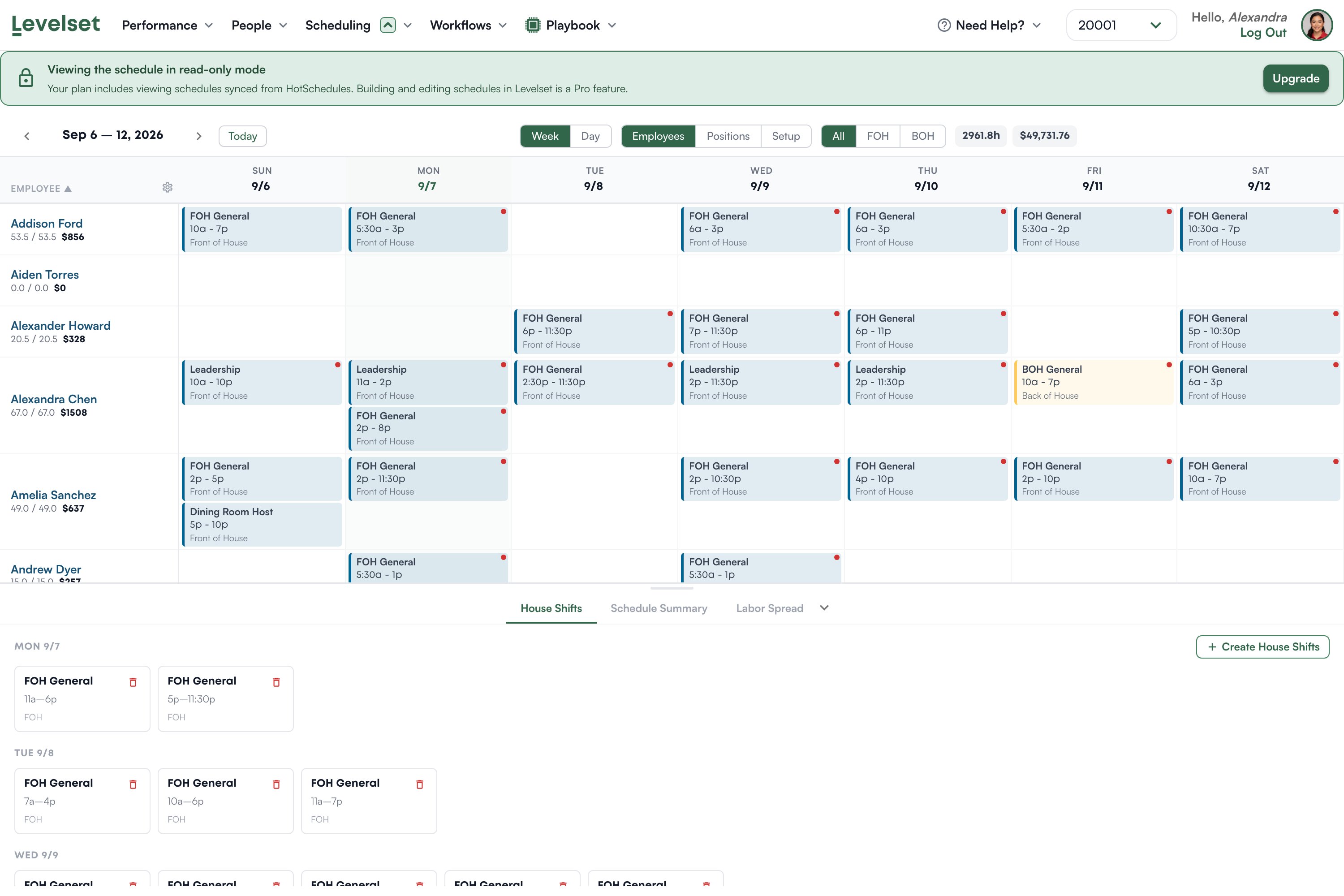
One row per team member, one column per day. Each block is a shift with its job, its times, and its area.
Under each name are two figures: their hours for the week against their target, and what those hours cost. Across the top you get the same totals for the whole week.
**Week and Day** switch how much you see at once. **Employees**, **Positions** and **Setup** change what the rows are: people, jobs, or the setup board. **All**, **FOH** and **BOH** filter by area.
Move between weeks with the arrows, and **Today** brings you back.
## Below the grid
Three tabs sit under the schedule.
**House Shifts** are shifts that belong to the restaurant rather than to a person, listed by day. **Schedule Summary** and **Labor Spread** show how the week is distributed.
On the Measure plan a **Create House Shifts** button appears here but will not work, because building shifts is part of Deploy. The rest of the panel reads normally.
## Viewing versus editing
Viewing the schedule is included on the Measure plan. Building and editing it is part of Deploy.
On Measure you get a banner across the top: "Viewing the schedule in read-only mode. Your plan includes viewing schedules synced from HotSchedules. Building and editing schedules in Levelset is a Pro feature." Everything below it is your real schedule, imported from HotSchedules. You simply cannot change it here.
That is the intended path for most restaurants: keep building the schedule where you build it today, import it, and use Levelset for what it adds on top, which is knowing who is good at what.
## Where the schedule comes from
Unless you are on Deploy and building here, your schedule arrives through the HotSchedules import. That import is run by an operator from their own HotSchedules session, and it needs the Scheduling > Manage schedule permission for the schedule half to apply. See [Adding team members](/roster-management/adding-employees).
Importing a week replaces it. Every existing shift for that week at that location is removed and rebuilt from the import, including anything built by hand in Levelset.
## Common questions
Editing is part of the Deploy plan. On Measure the schedule is read-only, and the banner at the top says so with an upgrade link.
Nothing has been imported for that week. Run the import from the Roster, and make sure you run the bookmark from the Scheduling page in HotSchedules or it will not capture shifts.
The figure under a name is their scheduled hours against their target for the week, not hours worked. Levelset does not receive clock-in data.
Shifts that belong to the restaurant rather than a named person, so you can see coverage that is needed but not yet assigned.
Not automatically. Break rules are recorded in [Scheduling settings](/organization-settings/scheduling) as your policy; they are not applied to shifts for you.
## Reading the grid
One row per team member, one column per day. Each block is a shift with its job, its times, and its area.
Under each name are two figures: their hours for the week against their target, and what those hours cost. Across the top you get the same totals for the whole week.
**Week and Day** switch how much you see at once. **Employees**, **Positions** and **Setup** change what the rows are: people, jobs, or the setup board. **All**, **FOH** and **BOH** filter by area.
Move between weeks with the arrows, and **Today** brings you back.
## Below the grid
Three tabs sit under the schedule.
**House Shifts** are shifts that belong to the restaurant rather than to a person, listed by day. **Schedule Summary** and **Labor Spread** show how the week is distributed.
On the Measure plan a **Create House Shifts** button appears here but will not work, because building shifts is part of Deploy. The rest of the panel reads normally.
## Viewing versus editing
Viewing the schedule is included on the Measure plan. Building and editing it is part of Deploy.
On Measure you get a banner across the top: "Viewing the schedule in read-only mode. Your plan includes viewing schedules synced from HotSchedules. Building and editing schedules in Levelset is a Pro feature." Everything below it is your real schedule, imported from HotSchedules. You simply cannot change it here.
That is the intended path for most restaurants: keep building the schedule where you build it today, import it, and use Levelset for what it adds on top, which is knowing who is good at what.
## Where the schedule comes from
Unless you are on Deploy and building here, your schedule arrives through the HotSchedules import. That import is run by an operator from their own HotSchedules session, and it needs the Scheduling > Manage schedule permission for the schedule half to apply. See [Adding team members](/roster-management/adding-employees).
Importing a week replaces it. Every existing shift for that week at that location is removed and rebuilt from the import, including anything built by hand in Levelset.
## Common questions
Editing is part of the Deploy plan. On Measure the schedule is read-only, and the banner at the top says so with an upgrade link.
Nothing has been imported for that week. Run the import from the Roster, and make sure you run the bookmark from the Scheduling page in HotSchedules or it will not capture shifts.
The figure under a name is their scheduled hours against their target for the week, not hours worked. Levelset does not receive clock-in data.
Shifts that belong to the restaurant rather than a named person, so you can see coverage that is needed but not yet assigned.
Not automatically. Break rules are recorded in [Scheduling settings](/organization-settings/scheduling) as your policy; they are not applied to shifts for you.