> ## Documentation Index
> Fetch the complete documentation index at: https://docs.levelset.io/llms.txt
> Use this file to discover all available pages before exploring further.
# Setups
> Placing the people who are scheduled into the positions they are actually good at
A schedule tells you who is working. A setup tells you where they stand. This is the page where the ratings you have been collecting start paying for themselves.
Open **Scheduling > Setup**. Setups are included on both plans.
 ## How the board is laid out
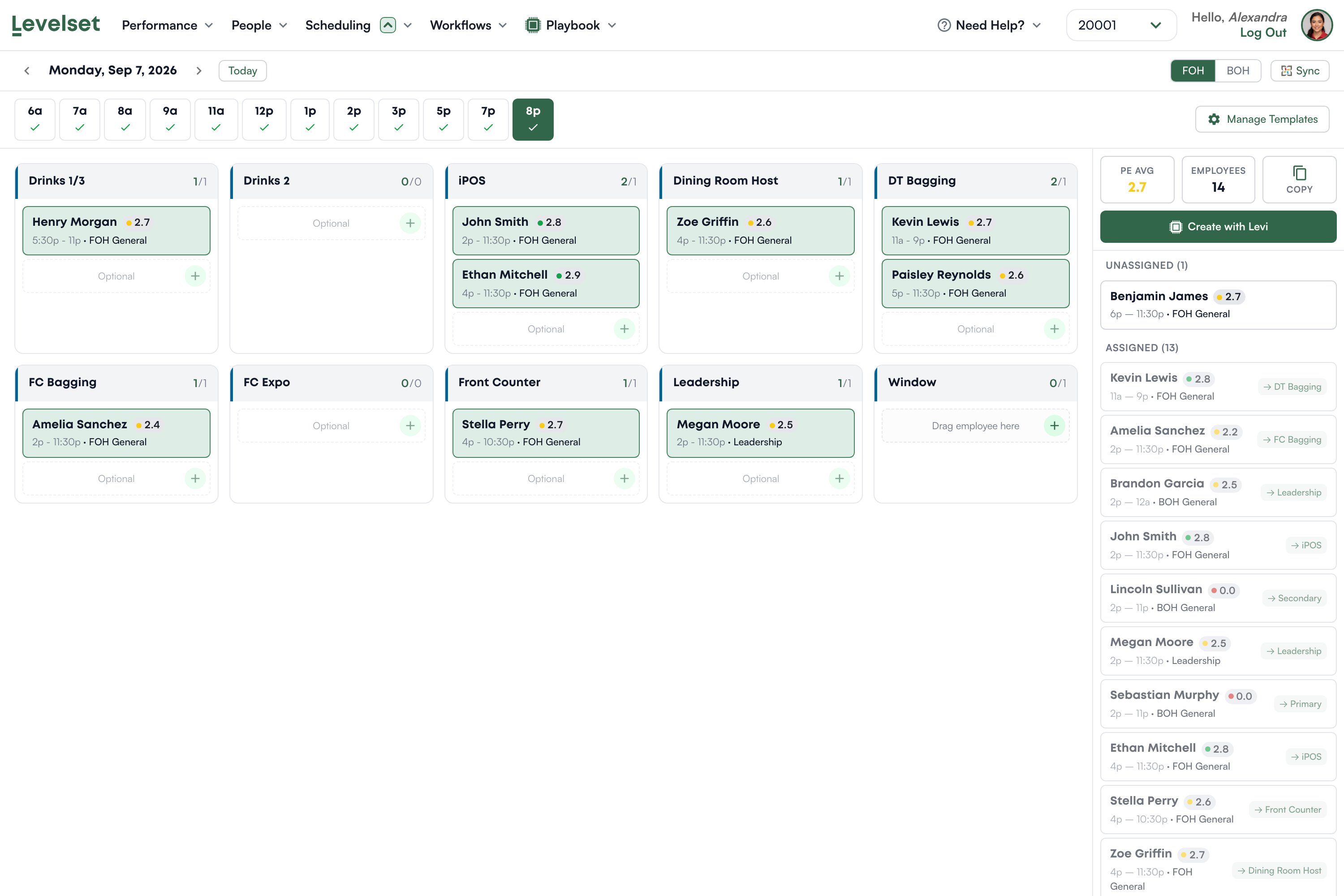
Pick a **date** at the top, and an **area** with the FOH and BOH toggle. Along the row beneath are your **time blocks**, for example 6a through 8p. A tick on a block means it has been built. You build one block at a time, because who you want on Front Counter at 7am is not who you want at 8pm.
The main area shows one **card per position**, each with a count like `2/1`, meaning how many people are placed against how many that position needs.
Each placed person shows their **name, their rating in that position, and their shift times**. The colored dot is their band: red for Not Yet, amber for On the Rise, green for Crushing It. That is the whole point of the board. You are not just filling slots, you are seeing at a glance whether the person you dropped into iPOS is actually strong there.
Slots marked **Optional** are extra capacity beyond what the position requires. Empty ones invite you to drag someone in.
## The panel on the right
**PE Avg** is the average rating of everyone currently placed, which is a quick read on how strong this block is. **Employees** counts who is scheduled.
Below that, everyone scheduled for the block, split into **Unassigned** and **Assigned**. Each shows their rating and, once placed, which position they are in. Drag a person from here onto a position card to place them.
Somebody sitting in Unassigned is scheduled and has nowhere to stand. That is the list to empty.
## Building a setup
Then choose the time block you are building.
Drag from the right-hand list onto a position card, or use the plus on a slot.
A full board of Not Yet ratings is a staffed shift that will still go badly. Move your strong people to the positions that carry the shift.
The ticks along the top show which blocks are done.
**Copy** duplicates a block you have already built, which is faster than starting again for a similar daypart.
## Where the people come from
The board reads your schedule, and only your schedule. Someone appears because they have a shift that overlaps the block you are building. There is no way to place a person who is not scheduled, which means an accurate week has to exist before a setup can be built at all.
If a person is missing, check the schedule first, then check their area on the Roster: the board is split into FOH and BOH, so a team member with no area set will not appear on either. See [the Roster](/roster-management/overview).
A team member who has never been rated in a position shows **0.0** in red. That is "no ratings yet", not a failing score. Rate them and a real number replaces it.
## Templates
**Manage Templates** is where the positions and time blocks themselves are defined. A template is the shape of your day: which positions exist for an area and which blocks you build. The board is that shape filled in with actual people.
Change a template when your restaurant genuinely changes, not to fix one awkward shift.
## Create with Levi
**Create with Levi** builds a suggested setup from who is scheduled and how they are rated. It is available on both plans, and it is a starting point you then adjust rather than a decision.
On Deploy you also get a free-text box for instructions, so you can ask for something specific like keeping a new hire off the window, and you can iterate on the result.
Nothing is submitted anywhere when you use it. It arranges people you already have.
## Common questions
Check their area on the Roster. The board is FOH or BOH, and a team member with neither set appears on neither.
The template does not require anyone in that position for this block. Adjust the template if that is wrong.
They have not been rated in that position yet. Placing them is a judgement call, and it is a good prompt to get them rated.
There is no print or export built in. Copy reuses a block you have already built. If you need it on paper, print the page from your browser.
They have no ratings in that position yet. It is an absence, not a bad score.
Yes, because who is scheduled changes every day. Copy speeds up blocks that repeat.
## How the board is laid out
Pick a **date** at the top, and an **area** with the FOH and BOH toggle. Along the row beneath are your **time blocks**, for example 6a through 8p. A tick on a block means it has been built. You build one block at a time, because who you want on Front Counter at 7am is not who you want at 8pm.
The main area shows one **card per position**, each with a count like `2/1`, meaning how many people are placed against how many that position needs.
Each placed person shows their **name, their rating in that position, and their shift times**. The colored dot is their band: red for Not Yet, amber for On the Rise, green for Crushing It. That is the whole point of the board. You are not just filling slots, you are seeing at a glance whether the person you dropped into iPOS is actually strong there.
Slots marked **Optional** are extra capacity beyond what the position requires. Empty ones invite you to drag someone in.
## The panel on the right
**PE Avg** is the average rating of everyone currently placed, which is a quick read on how strong this block is. **Employees** counts who is scheduled.
Below that, everyone scheduled for the block, split into **Unassigned** and **Assigned**. Each shows their rating and, once placed, which position they are in. Drag a person from here onto a position card to place them.
Somebody sitting in Unassigned is scheduled and has nowhere to stand. That is the list to empty.
## Building a setup
Then choose the time block you are building.
Drag from the right-hand list onto a position card, or use the plus on a slot.
A full board of Not Yet ratings is a staffed shift that will still go badly. Move your strong people to the positions that carry the shift.
The ticks along the top show which blocks are done.
**Copy** duplicates a block you have already built, which is faster than starting again for a similar daypart.
## Where the people come from
The board reads your schedule, and only your schedule. Someone appears because they have a shift that overlaps the block you are building. There is no way to place a person who is not scheduled, which means an accurate week has to exist before a setup can be built at all.
If a person is missing, check the schedule first, then check their area on the Roster: the board is split into FOH and BOH, so a team member with no area set will not appear on either. See [the Roster](/roster-management/overview).
A team member who has never been rated in a position shows **0.0** in red. That is "no ratings yet", not a failing score. Rate them and a real number replaces it.
## Templates
**Manage Templates** is where the positions and time blocks themselves are defined. A template is the shape of your day: which positions exist for an area and which blocks you build. The board is that shape filled in with actual people.
Change a template when your restaurant genuinely changes, not to fix one awkward shift.
## Create with Levi
**Create with Levi** builds a suggested setup from who is scheduled and how they are rated. It is available on both plans, and it is a starting point you then adjust rather than a decision.
On Deploy you also get a free-text box for instructions, so you can ask for something specific like keeping a new hire off the window, and you can iterate on the result.
Nothing is submitted anywhere when you use it. It arranges people you already have.
## Common questions
Check their area on the Roster. The board is FOH or BOH, and a team member with neither set appears on neither.
The template does not require anyone in that position for this block. Adjust the template if that is wrong.
They have not been rated in that position yet. Placing them is a judgement call, and it is a good prompt to get them rated.
There is no print or export built in. Copy reuses a block you have already built. If you need it on paper, print the page from your browser.
They have no ratings in that position yet. It is an absence, not a bad score.
Yes, because who is scheduled changes every day. Copy speeds up blocks that repeat.