> ## Documentation Index
> Fetch the complete documentation index at: https://docs.levelset.io/llms.txt
> Use this file to discover all available pages before exploring further.
# Access
> Invite people to Levelset, set which stores they see and what they can do, check why someone can or can't do something, and remove access
The **Access** tab decides who can sign in to Levelset, which stores they see, and what they are allowed to do once in. It keeps two things apart. A **team member** is someone on a store's team, listed on the [Team members](/team/team-members) tab with a name, role and store. A **login** is the email and password someone signs in with. Most team members start with no login, and an office person can have a login without being a team member.
What a login can do comes from its **permission level**, a named set of permissions. Every role has a permission level of the same name, so everyone in a role can do the same things; a **custom level** is one made for particular people. Both are explained on [Roles](/team/roles#roles-levels-and-permission-levels).
Open **People > Team & Access** and click the **Access** tab. Every active team member has a row, plus any login that isn't a team member. What you can do here depends on your own role; if a button described below is missing for you, [Who can do what](#who-can-do-what) names the permission.
Here because someone can't find a button? Go to [See why someone can or can't do something](#see-why-someone-can-or-cant-do-something).
## Read the list
Each row shows the person's role, their **Access level** (**Role default**, a custom level, or **No login**), the stores they can see, whether the dashboard and the Levelset app are on for them, their status, and their last sign-in. Click a name to open their panel, which holds every setting for them. Search by name or email, or filter by **Status**, **Role** or **Store**.
The **Status** column says how far each person is from a working login.
| Status | Meaning |
| - | - |
| Needs an email | A team member with no email, so they can't be invited |
| No login | Has an email but hasn't been invited |
| Invited | Invite sent, not used yet. The list shows the date |
| Active on dashboard | Signed in and using the dashboard |
| Active on app | The Levelset app is on for them and a phone is registered for notifications |
| Needs a password reset | Must set a new password at their next sign-in |
| Access removed | Signed out and blocked. Their history stays |
## Invite a team member
Say a store has promoted a team member to Team Lead (use your own role names) and wants them on the dashboard. They have to be on the store's team first; see [Add someone](/team/team-members#add-someone).
1. On the **Access** tab, find them.
2. If the row says **No login**, click **Invite** on the row.
3. If the row says **Needs an email**, click their name, type an address under **Email**, and click **Invite**.
They get an email invite and set their own password. Their permission level is their role's, so the new Team Lead can do whatever the Team Lead role allows. You can invite people at or below your own level in the role order, never the Operator, the owner's role. Their panel shows how far the invite email got (**Sent**, **Delivered**, **Opened**).
To resend, click **Resend invite** in the panel, or tick several rows and click **Resend invite** above the list. With the **Role** filter set, **Resend to everyone invited in this role** covers every pending invite in that role. To stop an unused invite, open the panel and click **Delete this invite**.
## Add someone who isn't a team member
This is for office staff or consultants who need the dashboard but don't work shifts.
1. On the **Access** tab, click **Add someone**.
2. Enter **First name**, **Last name** and **Email**.
3. Under **Stores**, tick the stores they can see. If you reach only one store, it is ticked for you.
4. Click **Send invite**.
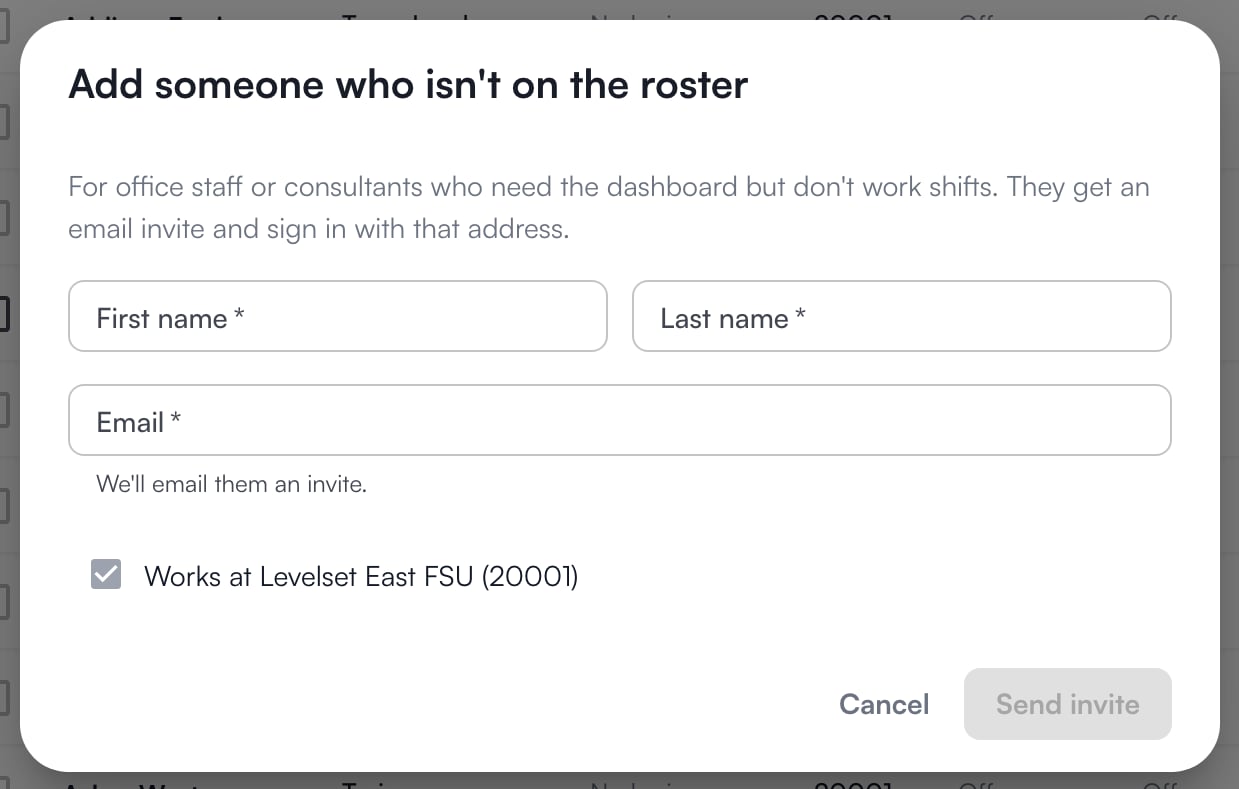 They start on an **admin level**: a permission level for logins that aren't tied to a role. Levelset creates two, Administrator 1 and Administrator 2, and you can change which one in their panel under **Permission level**. Only someone who can manage users and is also in one of the top two roles, or on an admin level that reaches every store, can add someone this way, so only they see **Add someone**.
## Give or remove dashboard access
The **Dashboard** switch decides whether a login can open the dashboard at all, separately from what it can do inside.
1. Click the person's name.
2. Under **Access**, switch **Dashboard** on or off. The line under it says where the setting comes from: **From the role**, **Default for their level**, or **Set for this person**.
They start on an **admin level**: a permission level for logins that aren't tied to a role. Levelset creates two, Administrator 1 and Administrator 2, and you can change which one in their panel under **Permission level**. Only someone who can manage users and is also in one of the top two roles, or on an admin level that reaches every store, can add someone this way, so only they see **Add someone**.
## Give or remove dashboard access
The **Dashboard** switch decides whether a login can open the dashboard at all, separately from what it can do inside.
1. Click the person's name.
2. Under **Access**, switch **Dashboard** on or off. The line under it says where the setting comes from: **From the role**, **Default for their level**, or **Set for this person**.
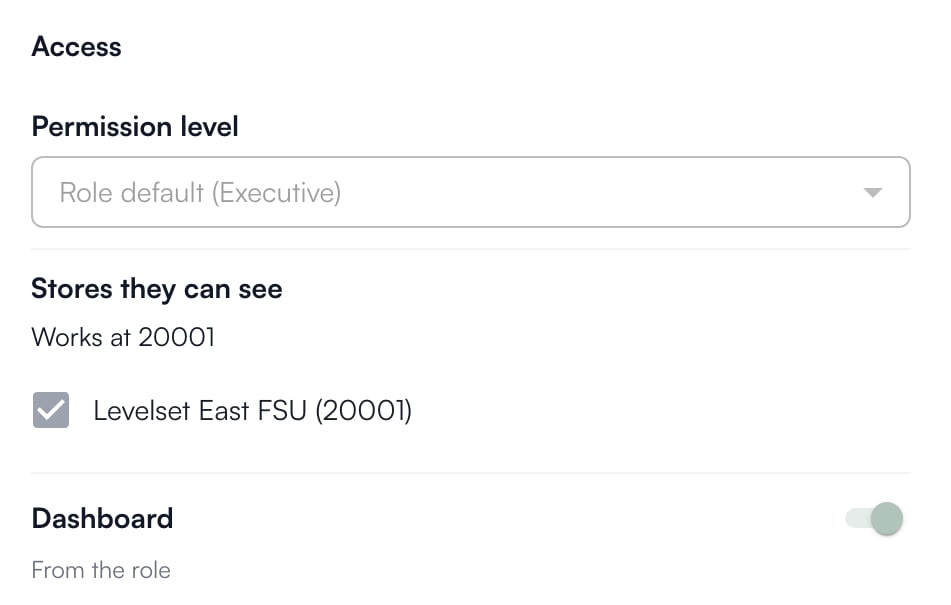 Click **Use the role's setting** to undo a change made for one person. To change it for a whole role, see [Turn dashboard access on or off for a role](/team/roles#turn-dashboard-access-on-or-off-for-a-role). Someone whose dashboard is off sees **Your account doesn't include the dashboard** when they sign in. People who aren't team members are never limited this way.
## Change someone's permission level
1. Click the person's name.
2. Under **Permission level**, pick a level. **Role default** follows their role. The other options are custom levels made for their role.
3. To make a new custom level for them, pick **Custom permissions…**. The **Roles** tab opens with **Add custom level** ready.
It saves as soon as you pick. To change the role itself, see [Change someone's role](/team/team-members#change-someones-role).
## Set which stores someone can see
Under **Stores they can see** in the person's panel, tick the stores. Someone who sees every store has every box ticked. Only someone who reaches every store can narrow that; anyone else sees the boxes locked, with the reason under them. A store you don't reach stays ticked and can't be unticked. At least one store must stay ticked, and the panel says **Keep at least one store.** if you try to clear them all. In an organization with one store there are no boxes: the panel names the store, or says **Every store**.
## Remove someone's access
1. Click the person's name.
2. Under **Remove access**, click **Remove access now**, then **Remove access** to confirm.
They are signed out everywhere at once, and their history stays. **Restore access** undoes it. Someone whose employment was ended must be [brought back](/team/team-members#bring-someone-back) first.
When someone's employment is ended on the **Team members** tab, their login is normally removed with it. Before removing it, Levelset checks whether the same person has another active team member entry, at this store or another: a linked entry, the same email and first name, or the same ID from your scheduling system.
| What Levelset finds | What happens to the login |
| - | - |
| No other entry | Removed, if the person ending the employment can manage users and is above them. Otherwise kept, and the message names who can remove it |
| An entry with the same role, or they're on a custom level | Moves to that entry |
| An entry with a different role | Kept for a manager to review |
| An entry that has its own login | Removed as a duplicate |
When someone is brought back, the login the termination removed can come back in the same step. A login removed here by hand, or removed as a duplicate, stays removed until someone clicks **Restore access**.
To force a new password instead of removing access, tick **Require a new password at next sign-in** and click **Send password reset**.
## See why someone can or can't do something
Say the new Team Lead can't find the button to delete an infraction. Check here before changing anything.
1. Click the person's name and scroll to **What they can do**.
2. Under **Can they…?**, type what you want to check in plain words, for example "delete an infraction" or "see pay".
3. Click **Check** on the matching permission.
Click **Use the role's setting** to undo a change made for one person. To change it for a whole role, see [Turn dashboard access on or off for a role](/team/roles#turn-dashboard-access-on-or-off-for-a-role). Someone whose dashboard is off sees **Your account doesn't include the dashboard** when they sign in. People who aren't team members are never limited this way.
## Change someone's permission level
1. Click the person's name.
2. Under **Permission level**, pick a level. **Role default** follows their role. The other options are custom levels made for their role.
3. To make a new custom level for them, pick **Custom permissions…**. The **Roles** tab opens with **Add custom level** ready.
It saves as soon as you pick. To change the role itself, see [Change someone's role](/team/team-members#change-someones-role).
## Set which stores someone can see
Under **Stores they can see** in the person's panel, tick the stores. Someone who sees every store has every box ticked. Only someone who reaches every store can narrow that; anyone else sees the boxes locked, with the reason under them. A store you don't reach stays ticked and can't be unticked. At least one store must stay ticked, and the panel says **Keep at least one store.** if you try to clear them all. In an organization with one store there are no boxes: the panel names the store, or says **Every store**.
## Remove someone's access
1. Click the person's name.
2. Under **Remove access**, click **Remove access now**, then **Remove access** to confirm.
They are signed out everywhere at once, and their history stays. **Restore access** undoes it. Someone whose employment was ended must be [brought back](/team/team-members#bring-someone-back) first.
When someone's employment is ended on the **Team members** tab, their login is normally removed with it. Before removing it, Levelset checks whether the same person has another active team member entry, at this store or another: a linked entry, the same email and first name, or the same ID from your scheduling system.
| What Levelset finds | What happens to the login |
| - | - |
| No other entry | Removed, if the person ending the employment can manage users and is above them. Otherwise kept, and the message names who can remove it |
| An entry with the same role, or they're on a custom level | Moves to that entry |
| An entry with a different role | Kept for a manager to review |
| An entry that has its own login | Removed as a duplicate |
When someone is brought back, the login the termination removed can come back in the same step. A login removed here by hand, or removed as a duplicate, stays removed until someone clicks **Restore access**.
To force a new password instead of removing access, tick **Require a new password at next sign-in** and click **Send password reset**.
## See why someone can or can't do something
Say the new Team Lead can't find the button to delete an infraction. Check here before changing anything.
1. Click the person's name and scroll to **What they can do**.
2. Under **Can they…?**, type what you want to check in plain words, for example "delete an infraction" or "see pay".
3. Click **Check** on the matching permission.
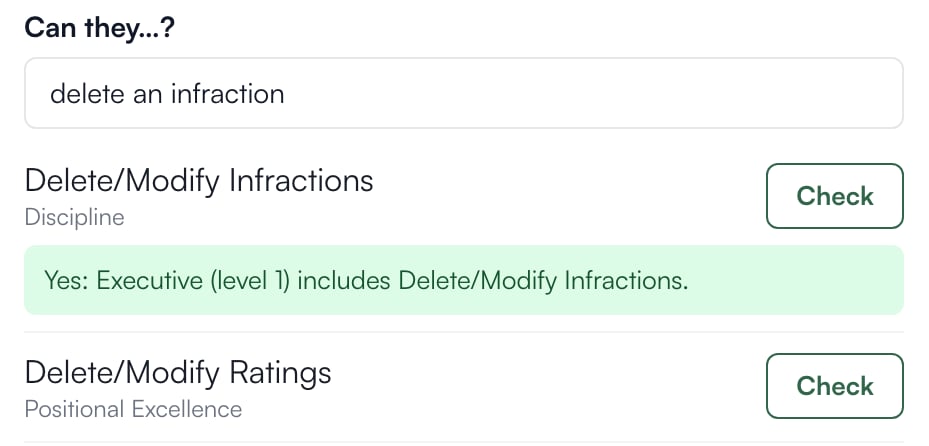 The answer is **Yes** or **No** with the reason: the level that includes or lacks the permission, a plan that doesn't include it, access that was removed, or no login. **Couldn't check** means Levelset couldn't read something; it is not a No. Click **Show the full list** to see everything their level allows, grouped by menu.
To change the answer, change their permission level, or change what the level allows on the [Roles](/team/roles#edit-what-a-role-can-do) tab.
## Why you see only some people, and why some controls are locked
You see the people who work at a store you can reach: the store you work at, plus the stores ticked under **Stores they can see** in your own panel. If every box there is ticked, you see everyone.
A control is locked, with the reason under it, when:
| Reason shown | Why |
| - | - |
| They're also at a store you don't have access to. Only someone with access to all their stores can change this login. | Login changes need every store they work at. Resends and password resets still work |
| You don't have access to this store | That store stays ticked, and you can't untick it |
| They have every store; only someone with access to every store can narrow it. | You don't reach every store |
| Only someone above their level can change or remove their access. | Their role is at or above yours |
| The Operator's access can only be changed by Levelset. | Contact Levelset |
| You can't change your own access. | Ask someone above you |
## Who can do what
| If you notice this | The permission behind it |
| - | - |
| No **Access** tab on **Team & Access** | Access > View Access |
| No **Invite**, **Resend invite**, **Send password reset**, **Remove access now** or **Restore access** | Access > Manage Users |
| No **Add someone** button | Access > Manage Users, and also being in one of the top two roles or on an admin level that reaches every store |
If you're missing something here, ask whoever manages roles in your organization to turn it on. See [Roles](/team/roles).
## Common questions
Their employment was ended, or they work only at stores you can't reach. Check the **Team members** tab for their store first.
If the panel says **Email didn't send**, click **Resend invite**. A resend goes to the email shown under **Email** in their panel.
Their **Permission level** is set to a custom level, which doesn't follow the role. Set it back to **Role default**.
The login isn't linked to their team member entry. Open their panel and use **Link to a team member**; from then on the login follows that person's role.
The answer is **Yes** or **No** with the reason: the level that includes or lacks the permission, a plan that doesn't include it, access that was removed, or no login. **Couldn't check** means Levelset couldn't read something; it is not a No. Click **Show the full list** to see everything their level allows, grouped by menu.
To change the answer, change their permission level, or change what the level allows on the [Roles](/team/roles#edit-what-a-role-can-do) tab.
## Why you see only some people, and why some controls are locked
You see the people who work at a store you can reach: the store you work at, plus the stores ticked under **Stores they can see** in your own panel. If every box there is ticked, you see everyone.
A control is locked, with the reason under it, when:
| Reason shown | Why |
| - | - |
| They're also at a store you don't have access to. Only someone with access to all their stores can change this login. | Login changes need every store they work at. Resends and password resets still work |
| You don't have access to this store | That store stays ticked, and you can't untick it |
| They have every store; only someone with access to every store can narrow it. | You don't reach every store |
| Only someone above their level can change or remove their access. | Their role is at or above yours |
| The Operator's access can only be changed by Levelset. | Contact Levelset |
| You can't change your own access. | Ask someone above you |
## Who can do what
| If you notice this | The permission behind it |
| - | - |
| No **Access** tab on **Team & Access** | Access > View Access |
| No **Invite**, **Resend invite**, **Send password reset**, **Remove access now** or **Restore access** | Access > Manage Users |
| No **Add someone** button | Access > Manage Users, and also being in one of the top two roles or on an admin level that reaches every store |
If you're missing something here, ask whoever manages roles in your organization to turn it on. See [Roles](/team/roles).
## Common questions
Their employment was ended, or they work only at stores you can't reach. Check the **Team members** tab for their store first.
If the panel says **Email didn't send**, click **Resend invite**. A resend goes to the email shown under **Email** in their panel.
Their **Permission level** is set to a custom level, which doesn't follow the role. Set it back to **Role default**.
The login isn't linked to their team member entry. Open their panel and use **Link to a team member**; from then on the login follows that person's role.