

- the Levelset app, the phone app for iPhone and Android that each leader signs in to with their own account (see Getting started with the app: leaders), or
- your store’s mobile web app, a web page unique to each store that opens on any phone or tablet with no sign-in and holds the store’s rating and discipline forms.
Rate in the Levelset app
- Tap the + button and choose Submit Rating. It appears when your role holds Positional Excellence > Submit Ratings.
- The leader starts on your own name. There is no leader code in the app.
- Pick the team member and the position, Front Counter in the example. The position list holds the positions the chosen leader’s role may rate, or every position when your organization hasn’t chosen rating roles.
- Score each criterion, and write what you saw in the details box.
- Submit.
Open the mobile web app
Use the link or QR code your store keeps posted or on its shared tablet. Anyone who can sign in to the Levelset dashboard also finds the link and the QR code under Organization > Set up > Team links; see Team links. On the home screen, tap Positional Ratings.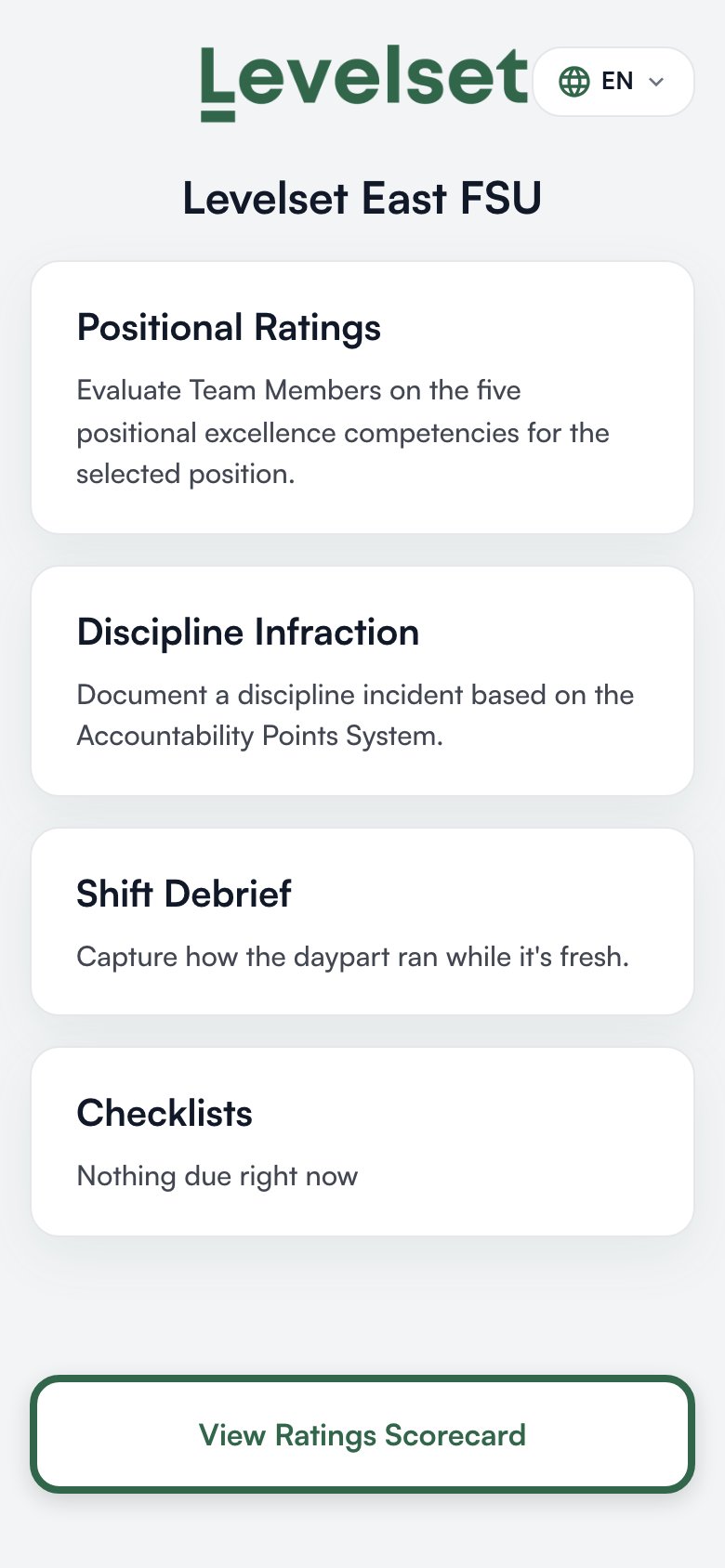
Fill in the form
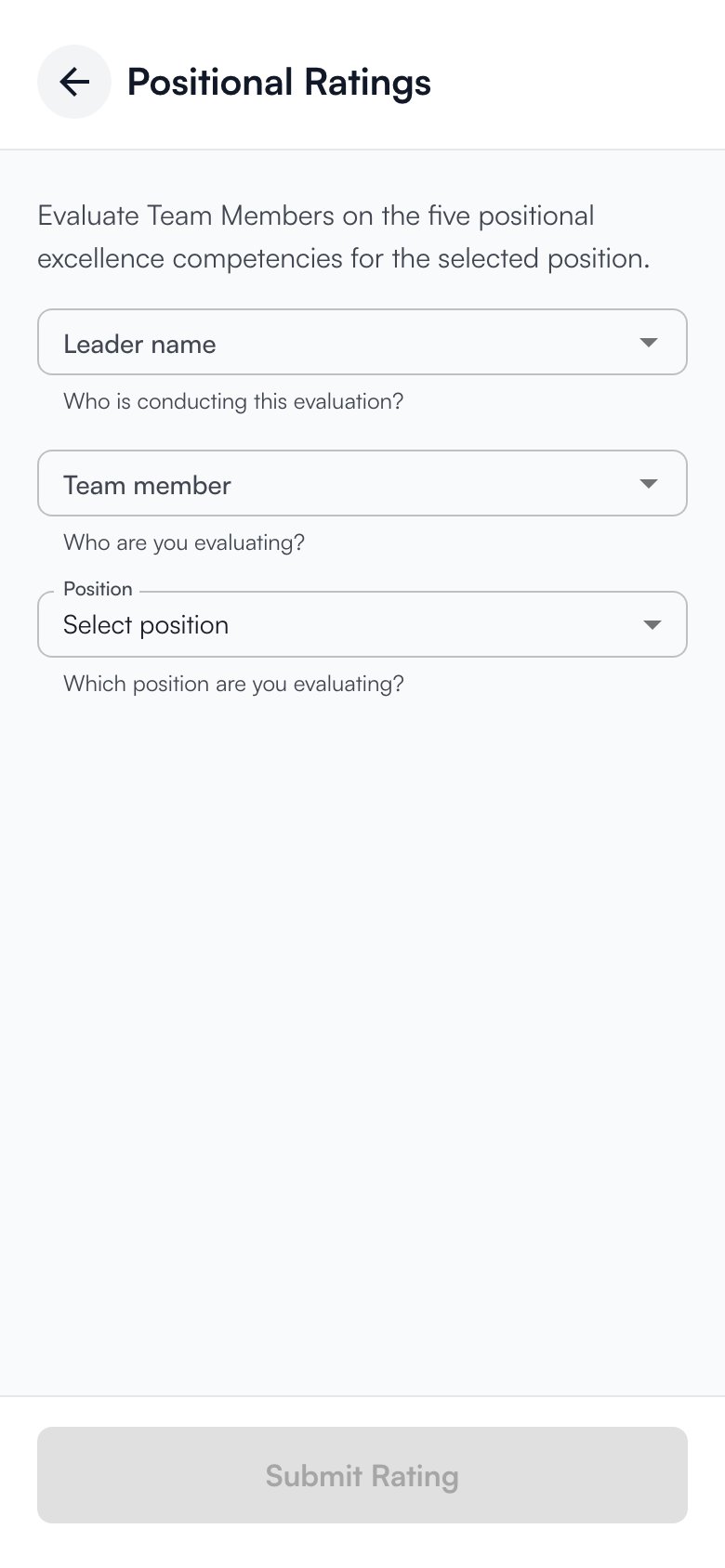
- Pick your own name under Leader name. The rating is filed under this name, so never pick someone else’s.
- Pick the person you are rating under Team member.
- Pick the Position, Front Counter in the example. Positions are grouped by area, and the position’s description appears under the field when your organization wrote one.
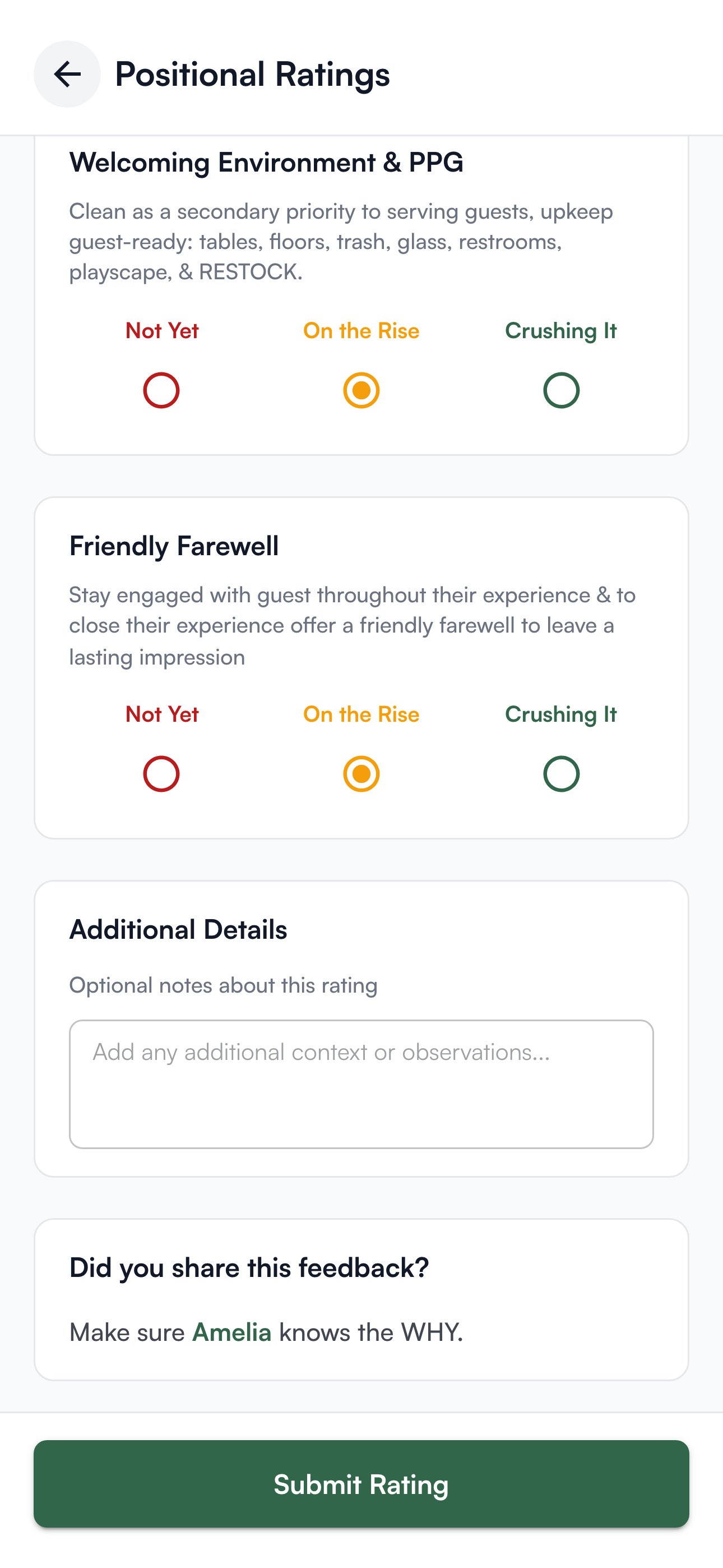
- Score each criterion the position carries, up to five: the things your organization decided matter in that position. Each gets Not Yet, On the Rise or Crushing It, whole scores only. When your organization wrote guidance for a score, it appears under that option.
- Under Additional Details, write what you saw. The box is optional unless your organization requires a comment on every rating, in which case the form says so and Submit Rating stays greyed out until you write one.
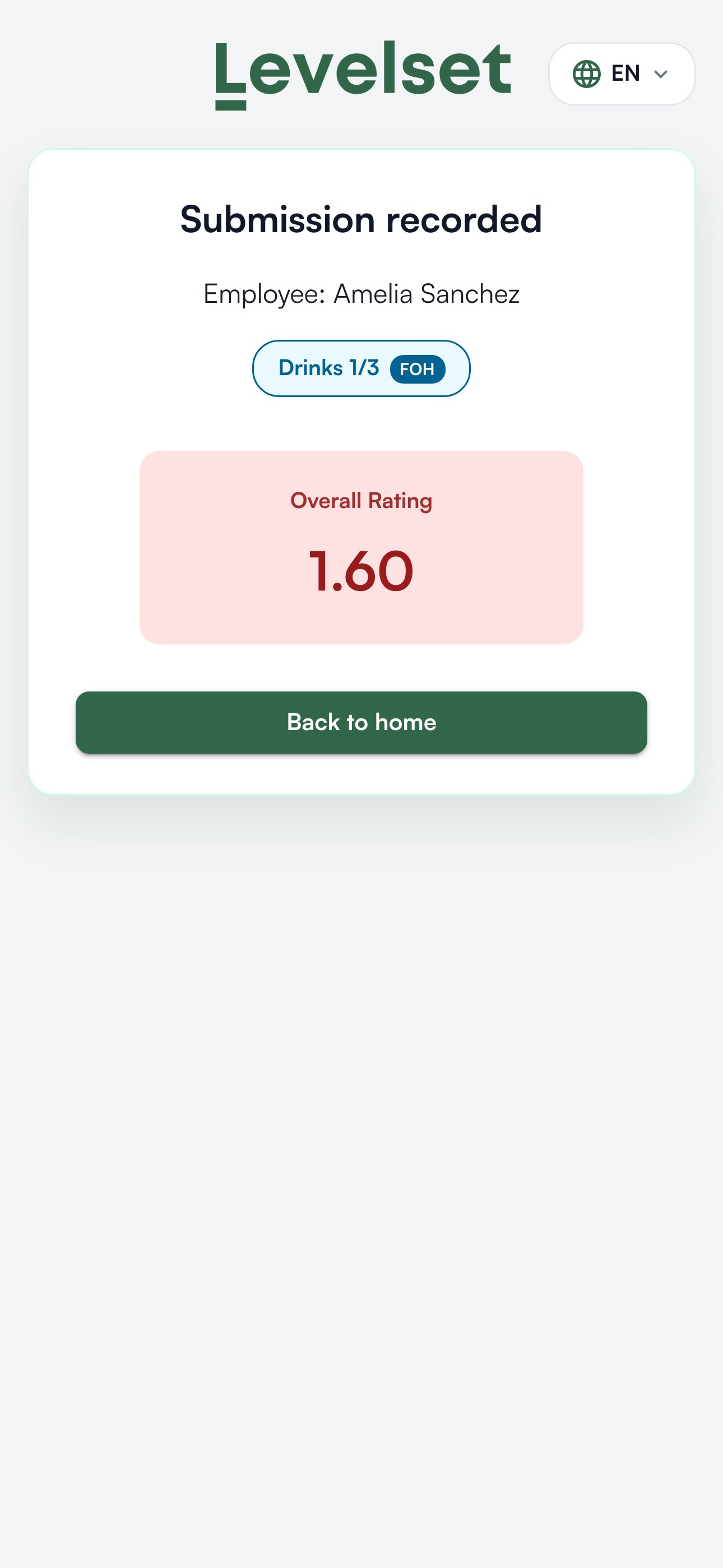
- Tap Submit Rating.
Who appears in each list
The Team member list is everyone active at this store. Someone missing is inactive or belongs to another store’s team. The Leader name list is the people whose role can rate, as your organization set it for each area or position. If your organization has not chosen rating roles, the list uses roles whose names suggest leadership, or everyone when none match. If your name is missing, your role can’t rate at this store yet. That isn’t a permission: the lowest role that can rate is the Rated by setting of each area or position, under Performance > Set up > Positions and ratings (see Positions and ratings), and anyone whose role holds Positional Excellence > Manage Positions can change it. If your own role is wrong, anyone whose role holds Team Members > Edit Employee can change it on People > Team & Access. The Position list is the active positions your organization rates, narrowed to the ones the chosen leader’s role may rate. A position used only for scheduling is not offered. In the mobile web app, the form refuses a combination that is not allowed and says why: This leader cannot rate this position, This team member cannot be rated in this position, or This team member is restricted from this position, which means the person is kept out of that position for now.Rating well
Rate what you saw on this shift; the averages take care of the trend. Use the whole scale, because three options only tell people apart if Not Yet gets used, and the Leadership View in Classic View shows anyone who never scores below Crushing It. Rate people across positions, since someone rated only where they are strong looks stronger than they are.Who can do what
In the Levelset app, rating takes Positional Excellence > Submit Ratings. The mobile web app’s form needs no permission: anyone with the store’s link can open it, and the Leader name list decides who can rate.
If you’re missing something here, ask whoever manages roles in your organization to turn it on. See Roles.
Common questions
The criteria are not the ones we set up.
The criteria are not the ones we set up.
Each position carries its own criteria, set under Performance > Set up > Positions and ratings. The form shows the criteria of the position picked, so check the Position first. See Write the criteria.
A position I expected is not in the list.
A position I expected is not in the list.
It has no named criterion yet, it is set up for scheduling only, or your role can’t rate it. On Positions and ratings, criteria take Positional Excellence > Manage Rating Criteria, and the position’s Rated by and whether it is used for scheduling only take Positional Excellence > Manage Positions and Scheduling > Manage Scheduling Settings.
Can I rate on my own phone instead of the store tablet?
Can I rate on my own phone instead of the store tablet?
Yes. Sign in to the Levelset app on your phone, or open the mobile web app link in any phone browser and add it to your home screen.
I rated the wrong person.
I rated the wrong person.
A rating can’t be edited on the form. Someone whose role holds Positional Excellence > Delete/Modify Ratings can delete it on the dashboard; see Delete a rating. Then submit it again for the right person.
Where do the ratings go?
Where do the ratings go?
Every rating shows up on Performance > Positional Excellence in the dashboard within moments. See Positional Excellence.