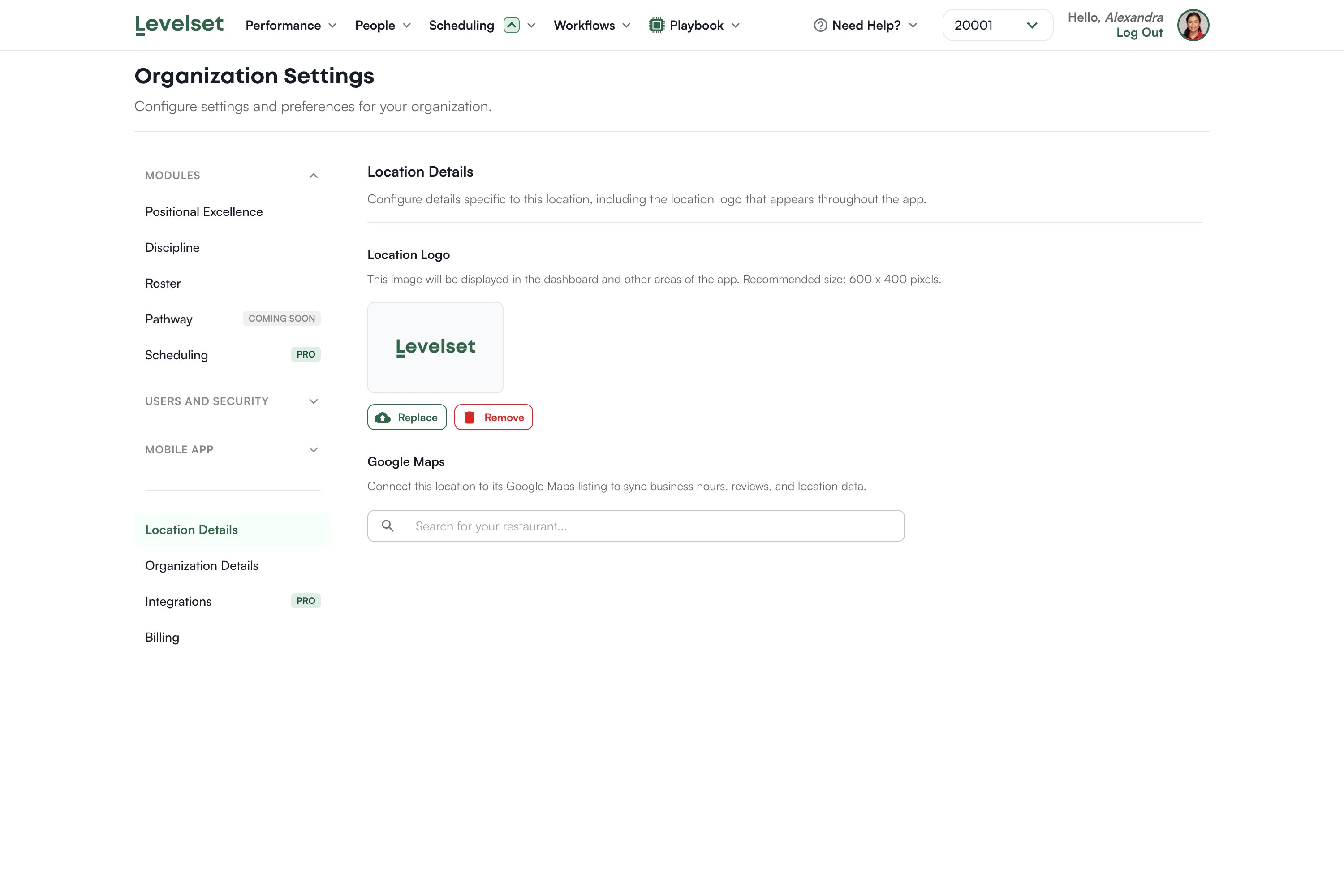
The image shown for this location around the dashboard. It also appears on exports, so a team member’s printed Positional Excellence chart carries your restaurant’s mark rather than a generic one.Upload a PNG or JPG up to 5MB. The recommended size is 600 by 400 pixels. The logo saves as soon as it uploads, so there is nothing else to click.
Search for your restaurant and select it to connect the location to its Google Maps listing. That connection is what lets Levelset pull in your business hours, reviews, and location data.Search the address as customers would find it, and confirm the result is the right store before selecting. Two restaurants in the same city can look nearly identical in a dropdown.
A URL where your team members can find resources or other information you publish. Enter the address and click Save Changes.Levelset stores the address for your organization. It does not host the page or check what is on it.