

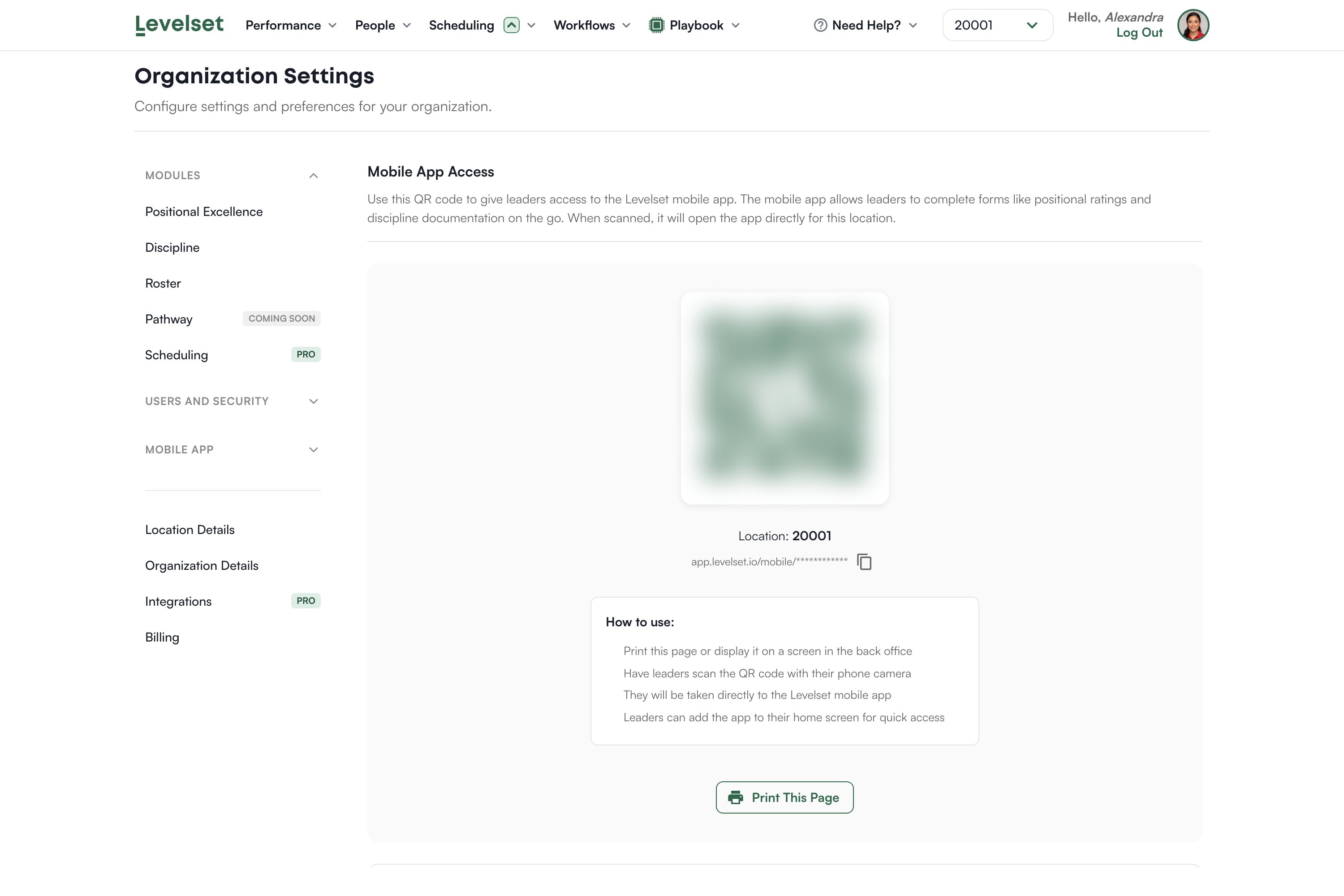
What you get
A QR code and a link for the location currently selected in the header. The link looks likeapp.levelset.io/mobile/ followed by a code unique to that location. Click the copy icon to copy it.
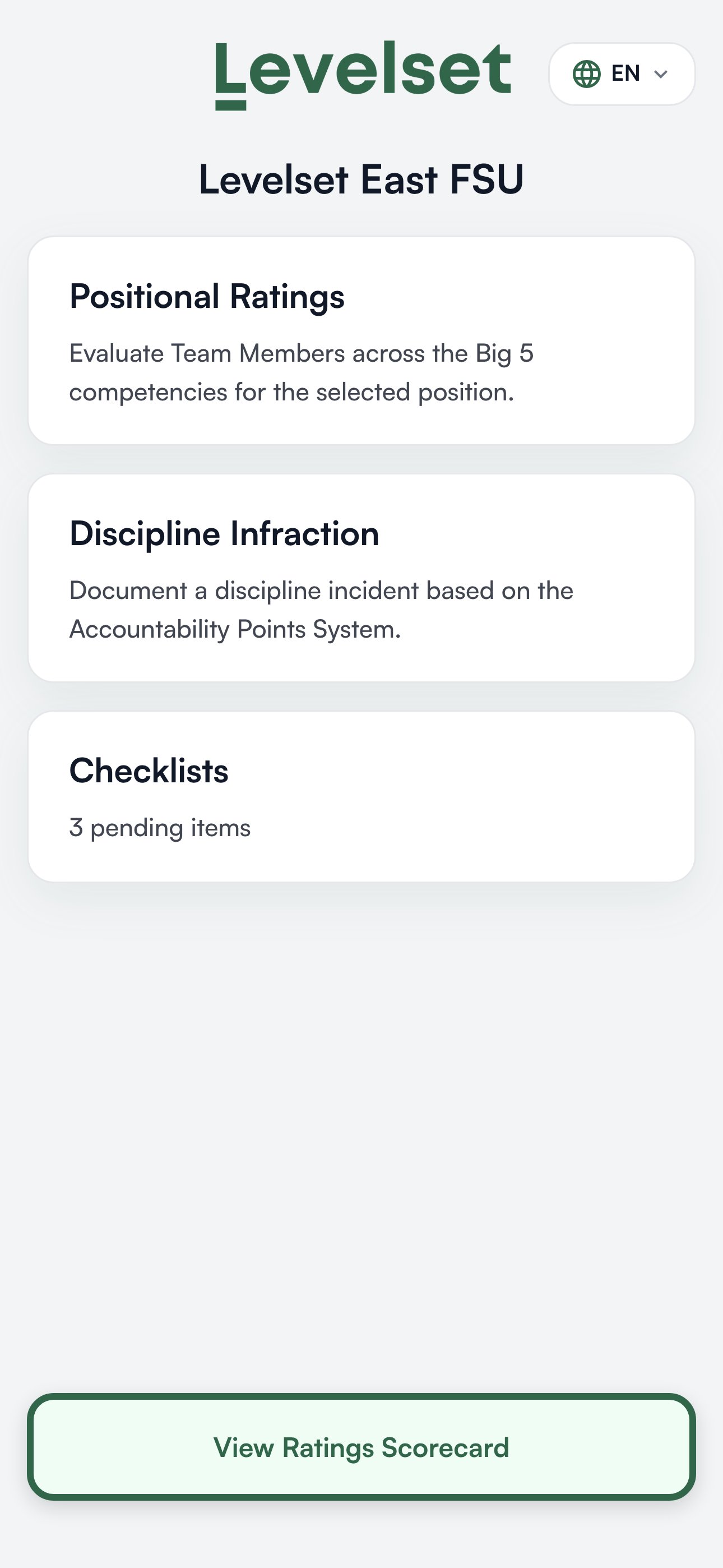
Scanning it opens the app already pointed at that location, so nobody has to pick a store, and lands on the forms your leaders use during a shift.
Putting it to use
1
Print the sheet or show it on a screen
Print This Page, below the QR code, opens a ready-made PDF for this location in a new tab. If that tab shows an error rather than a PDF, the sheet has not been generated for your location yet: ask your Levelset representative. Put the printout somewhere leaders can reach and guests cannot.
2
Have leaders scan it with their phone camera
It opens straight to the forms for that location.
3
Tell them to add it to their home screen
It then behaves like an app icon and they never have to find the link again.
What this link is and is not
The link is the location’s front door. There is no individual login behind it, which is what makes it fast on a shared device and what you have to plan around.- Anyone holding the link can open the forms for that location.
- The same code is used by the public ratings scorecard at
app.levelset.io/public/positional-excellence/. Anyone with the mobile web app link can reach that page, which shows this location’s ratings with no login. You get the scorecard link and its display view from the Embed button on Positional Excellence > Classic. - The discipline form is additionally protected by a passcode. Set it lower down this page, or in Discipline > Access.
- Because there is no login, nothing here identifies who submitted a form beyond the leader they select on the form itself.