

How access is decided
Every user has one permission level. Each role in your org chart has a matching level of the same name, marked System. A new user inherits the level attached to their role, so a Director gets the Director level without anyone configuring it. A permission level is a list of switches. The switches are grouped into modules such as Positional Excellence, Discipline, Roster, Scheduling, Users, and Billing. Inside each module are the individual abilities, like View Dashboard, Submit Ratings, or Manage Positions. Access is the level’s switches, narrowed by two other things:- Your plan. Abilities that belong to a plan you are not on are hidden. Someone on Measure will not see the Scheduling manage switches at all.
- Location access. A user only ever sees data for the locations assigned to them in Users.
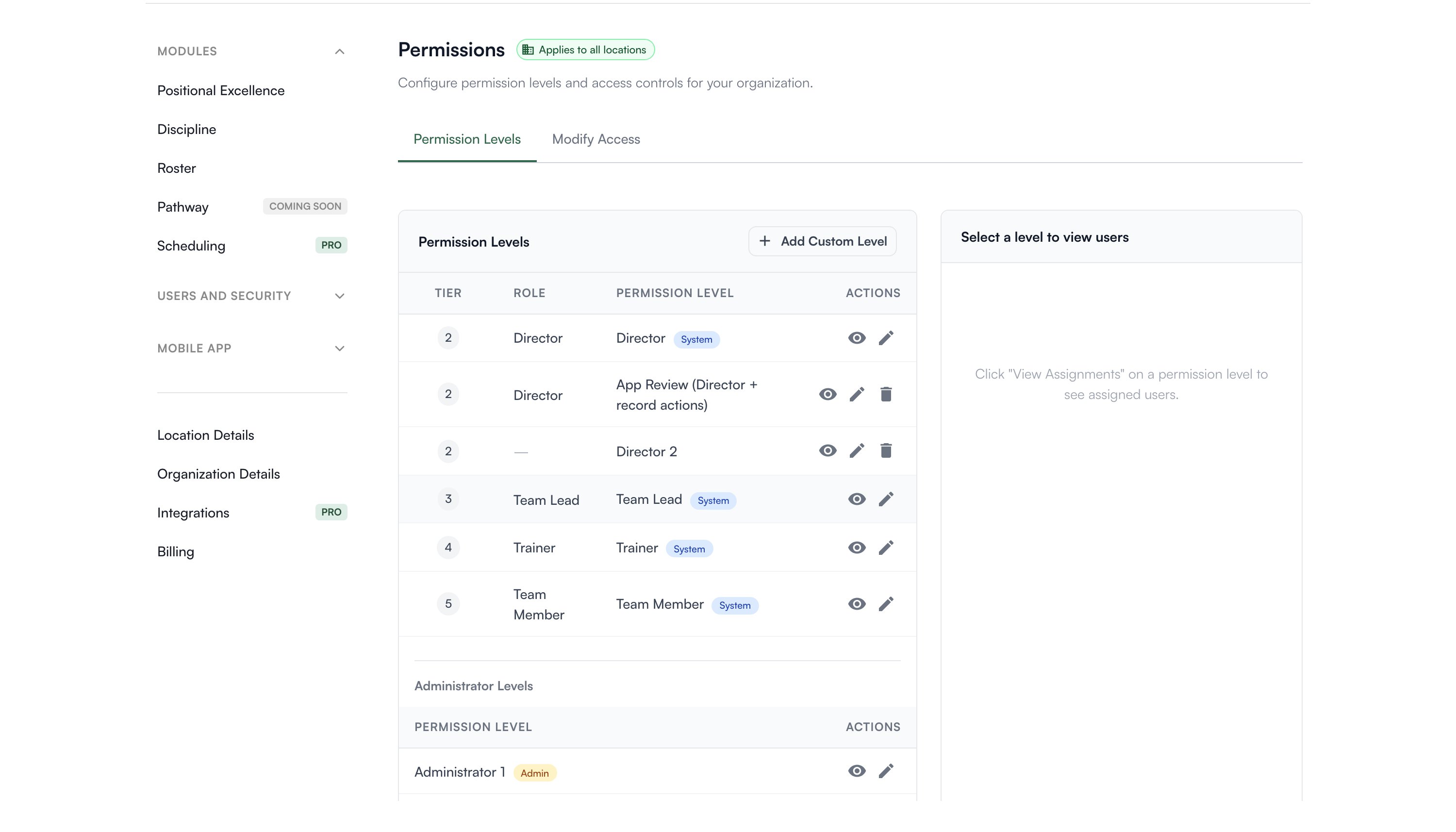
Permission Levels tab
The list shows each level with its tier, the role it belongs to, and badges.
The icons on each row let you view which users hold that level, edit it, and delete it if it is custom.
Add Custom Level creates an extra level at a tier you choose. Use it when two people at the same tier genuinely need different access, for example a Director who handles scheduling and one who does not. Levels named “Director 2” or similar in your list were created this way.
You only see and edit role levels below your own tier. An Executive sees Director and down but not Operator or Executive, so nobody can widen their own access or their peers’. Admin levels are the exception: Operator and the tier below it can see and edit those.
Modify Access tab
This is where the switches live. Pick a level, then turn abilities on or off module by module. Modules for features your plan does not include are hidden here, so the list you see is the list that can actually do something for your organization. Some abilities depend on another. Changing the discipline form passcode requires being able to view it, for example. Levelset enforces the pairing so you cannot create a level that half works.Give access, do not give more roles
When someone needs one extra ability, add that switch to their level, or make a custom level. Promoting them to a higher role to unlock a feature gives them everything else that role carries, including seeing pay and other people’s discipline records.The Manage schedule permission
Worth calling out because it is the most common cause of a confusing error. Importing your schedule from HotSchedules happens in two steps. The roster half runs for anyone who can sync employees. The schedule half additionally requires Scheduling > Manage schedule on the person’s permission level. Without it, the roster imports fine and the schedule step fails with a generic message. In existing organizations this switch is on for Operator and Director levels. It is not part of the starting set for anything below that, so if a Team Lead runs the import, expect the schedule half to fail. On the Measure plan there is a catch. The schedule half still needs this grant, but the Scheduling manage switches are hidden in Modify Access because they belong to Deploy. That means you cannot turn it on yourself for a level that does not already have it. Contact your Levelset representative. If the schedule step fails while the roster half succeeds, this is the cause far more often than anything about the schedule itself.Common questions
A section is missing from someone's Organization Settings.
A section is missing from someone's Organization Settings.
Each section is keyed to a view permission: View Users, View Roles, View Permissions, View Settings for the two details pages, View Billing for Billing, and Edit Forms for Integrations. Turn the matching switch on for their level.
Someone can open a page but nothing is editable.
Someone can open a page but nothing is editable.
They have the view permission and not the manage permission for that area. The page loads read only by design.
Will Levelset overwrite our permissions?
Will Levelset overwrite our permissions?
No. Defaults are seeded once when your organization is created. After that your settings are yours.
Someone cannot use the Levelset app on their phone.
Someone cannot use the Levelset app on their phone.
Two things are required: the Mobile app toggle on their row in Users, and Mobile App > Access Mobile App on their permission level. Both have to be on.
How do I revoke someone immediately?
How do I revoke someone immediately?
Use Revoke access on their row in Users. It ends every session at once. Permission changes alone can take a few minutes to reach an active session.