

Positions
Positions are the operational spots a team member works, like Drinks 1/3, Front Counter, or Breader. They are separate from roles. Roles are your org chart levels, such as Director or Trainer. See Roles. Positions are grouped into Front of house and Back of house, and they belong to the whole organization. Every location uses the same list.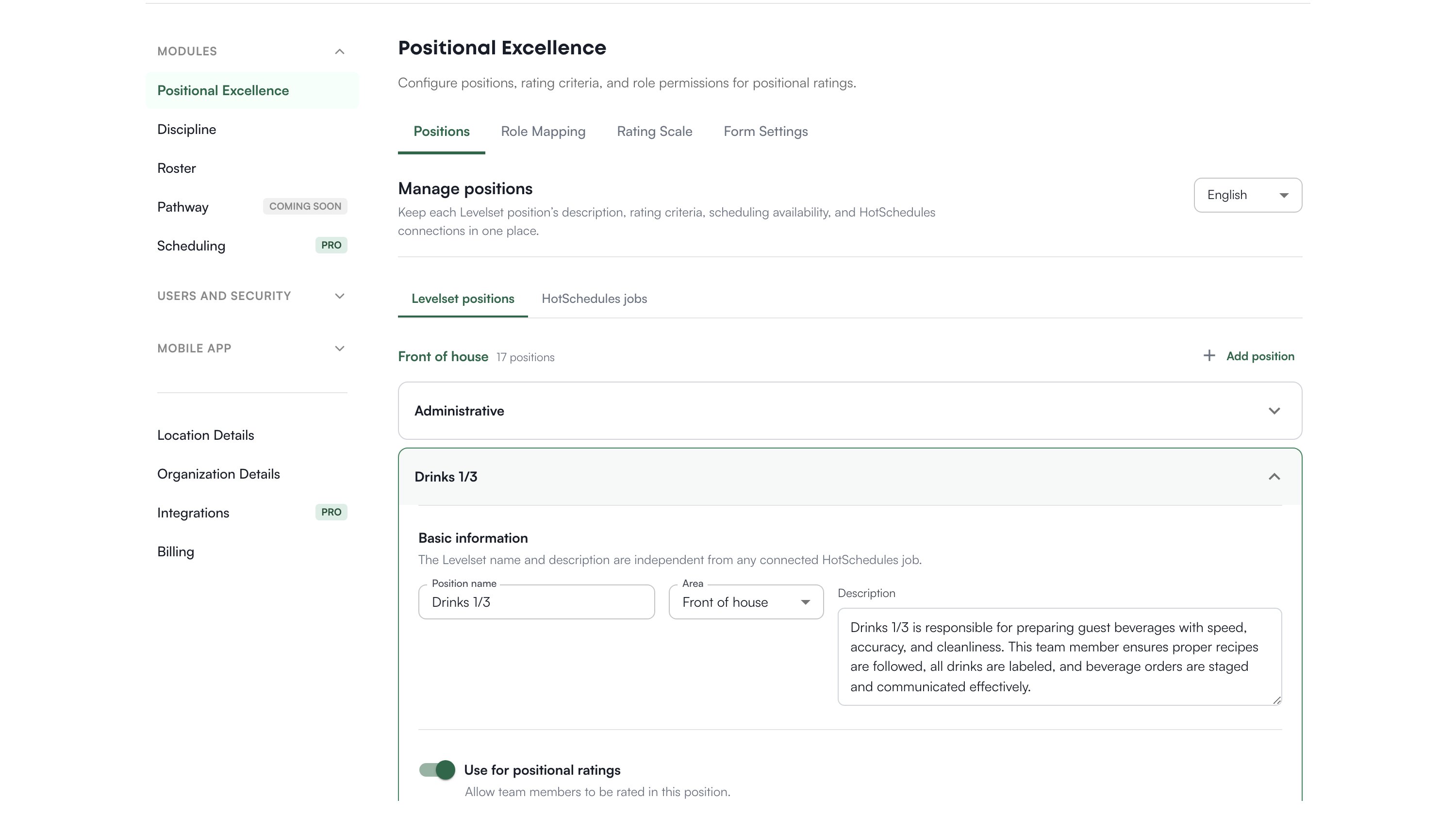
Add or edit a position
1
Open the position
Click a position to expand it, or click Add position in the area you want.
2
Fill in the basics
Position name, Area (Front of house or Back of house), and a Description of what the position owns and what good performance looks like. The name is required.
3
Decide what it is used for
Use for positional ratings makes the position available on rating forms. Show in Levelset scheduling makes it available in schedule and setup tools. A position can do one, both, or neither.
4
Write the criteria
With ratings turned on, fill in the five criteria. See below.
5
Save
Click Save changes. If you navigate away with unsaved edits, Levelset asks whether to save, discard, or keep editing.
The five criteria
A rated position has five criteria slots, numbered 1 to 5. You cannot add a sixth. Fill all five: a slot left blank is not saved and does not appear on the rating form, and a position rated on three criteria is not comparable to one rated on five. For each criterion you set:- Criterion name, the short label the leader sees on the form
- Description, what the leader should observe
- Pillar 1 and Pillar 2, optional tags that connect the criterion to your OE Pillars
- Rating guidance (1 / 2 / 3), what a 1, a 2, and a 3 mean for this criterion. Leave a field blank to use the default label
Spanish
The language dropdown switches the name and description fields between English and Español. In Español you also get a Translate all positions button and a translate button on each position and criterion. Team members see the language their form is set to.HotSchedules connections
If you import your schedule from HotSchedules, you can connect a HotSchedules job to a Levelset position so imported shifts land in the right spot. Connect a job only when it always means that one position. Broad jobs such as FOH General are better left unlinked. The HotSchedules jobs tab lists the jobs found for each location, grouped by location, with a dropdown to link each one. Jobs appear only after a schedule has been imported for that location. Job names come from HotSchedules and cannot be edited in Levelset. You can also pick Create Levelset position from that dropdown to make a matching position. It is created for scheduling only, with ratings off.Archive a position
Levelset does not permanently delete positions. Click the trash icon and confirm Archive position. The position stops appearing in active position lists, and its ratings, criteria, and shifts stay intact. If the position still has a HotSchedules job connected, unlink the job first. Levelset blocks the archive until you do.Ratings are recorded against the position name. Renaming a position is not the same as archiving one, and past ratings recorded under the old name will not follow the new name into the dashboard views. If you want a genuinely different position, add a new one and archive the old.
Role Mapping
Role Mapping controls which roles are allowed to submit ratings for each position. Each position has a list of role chips. Add or remove roles from the dropdown. Operator and the next leadership level down are always required. They show a Required badge and cannot be removed. Opening this tab fills in a default for any position that has none, covering Operator down to the second level below it. That default is saved as soon as it appears. Everything on this tab saves automatically, so there is no Save button.Rating Scale
Ratings run from 1.0 to 3.0. Two thresholds split that range into three color bands:- Not Yet, from 1.0 up to the first threshold
- On the Rise, from the first threshold up to the second
- Crushing It, from the second threshold to 3.0
Form Settings
One setting: Require Additional Comments. When it is on, leaders must write a comment to submit a positional rating in the mobile web app. It is off by default. Requiring a comment raises the quality of what you can read back later and slows submissions down. Turn it on once rating volume is healthy.Common questions
How do I delete a position permanently?
How do I delete a position permanently?
You cannot, by design. Archive it instead. A hard delete would break every historical rating and shift attached to that position. Archiving hides it from active lists and keeps the record.
Can I have more or fewer than five criteria?
Can I have more or fewer than five criteria?
No more than five. The five slots are fixed. A slot left blank is skipped, so fill all five to keep scores comparable.
How do I delete a rating?
How do I delete a rating?
Not from this page. Deleting a rating is done from Positional Excellence > Smart View, using the trash icon on its row. A rating cannot be edited, only deleted, and today the icon appears for anyone who can view that dashboard.
A position I edited is not showing up on the rating form.
A position I edited is not showing up on the rating form.
Check that Use for positional ratings is on and that at least one criterion has a name. A rated position with no named criteria is hidden from the form.
Someone is rated but does not appear on the tracker.
Someone is rated but does not appear on the tracker.
That is usually a roster problem, not a ratings problem. The tracker groups people by Front of house or Back of house, so a team member with no area set is invisible there even though their ratings are saved. Set their area on the Roster.