

Pay
Pay settings are where you record your pay structure: which factors change someone’s rate, and what the rates are. Levelset does not run payroll and does not send these figures anywhere.Suggested pay on the roster is calculated for a small number of locations that were set up for it individually, and for those it uses a rate chart Levelset maintains rather than the rates on this page. The rates you enter here are recorded for your reference and are not yet wired into that calculation. Ask your Levelset representative before relying on them.
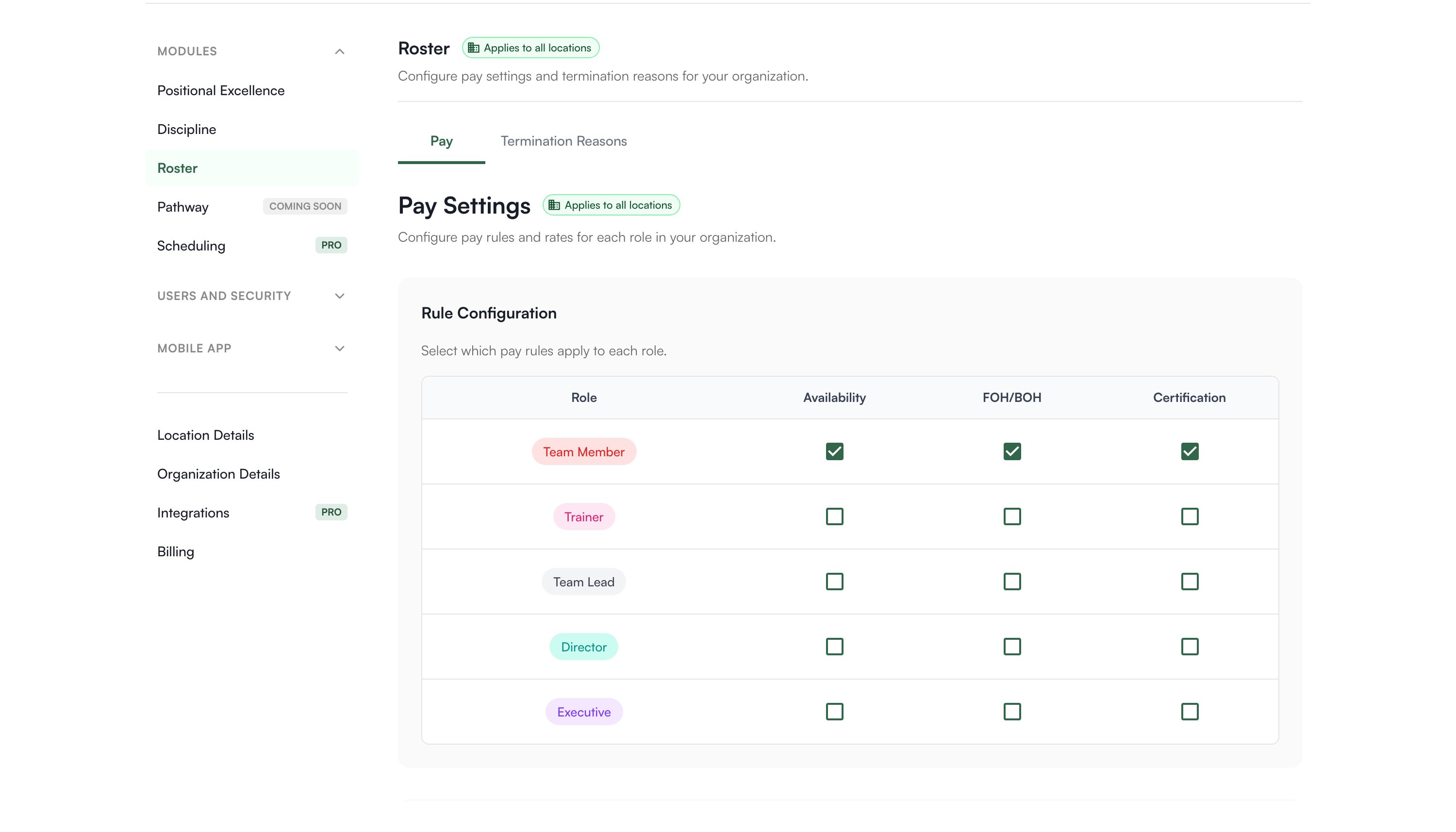
Rule Configuration
Pick which rules affect pay for each role. There are three:
Check a rule for a role and the rate table below grows the matching columns or rows. Leave all three unchecked and that role has a single rate.
Check the rules that actually change what someone earns in your restaurant. A role paid one rate needs none of them.
Pay Rates
Enter the hourly rates. The shape of this table follows what you checked above. With all three rules on for Team Member you get a Starting and a Certified rate, for FOH and for BOH, for Limited and Full availability. A dash instead of a field means that rule is off for that role. Each rate saves as you click out of it, so there is no Save button on this tab.Availability Requirements
A free text field per role describing what full availability means, for example “Must be available 5 days per week including weekends”. This is the definition your leaders apply when they set someone to Limited or Available on the roster. The Pay tab labels that same column Full.Termination Reasons
The list a leader picks from when they deactivate a team member.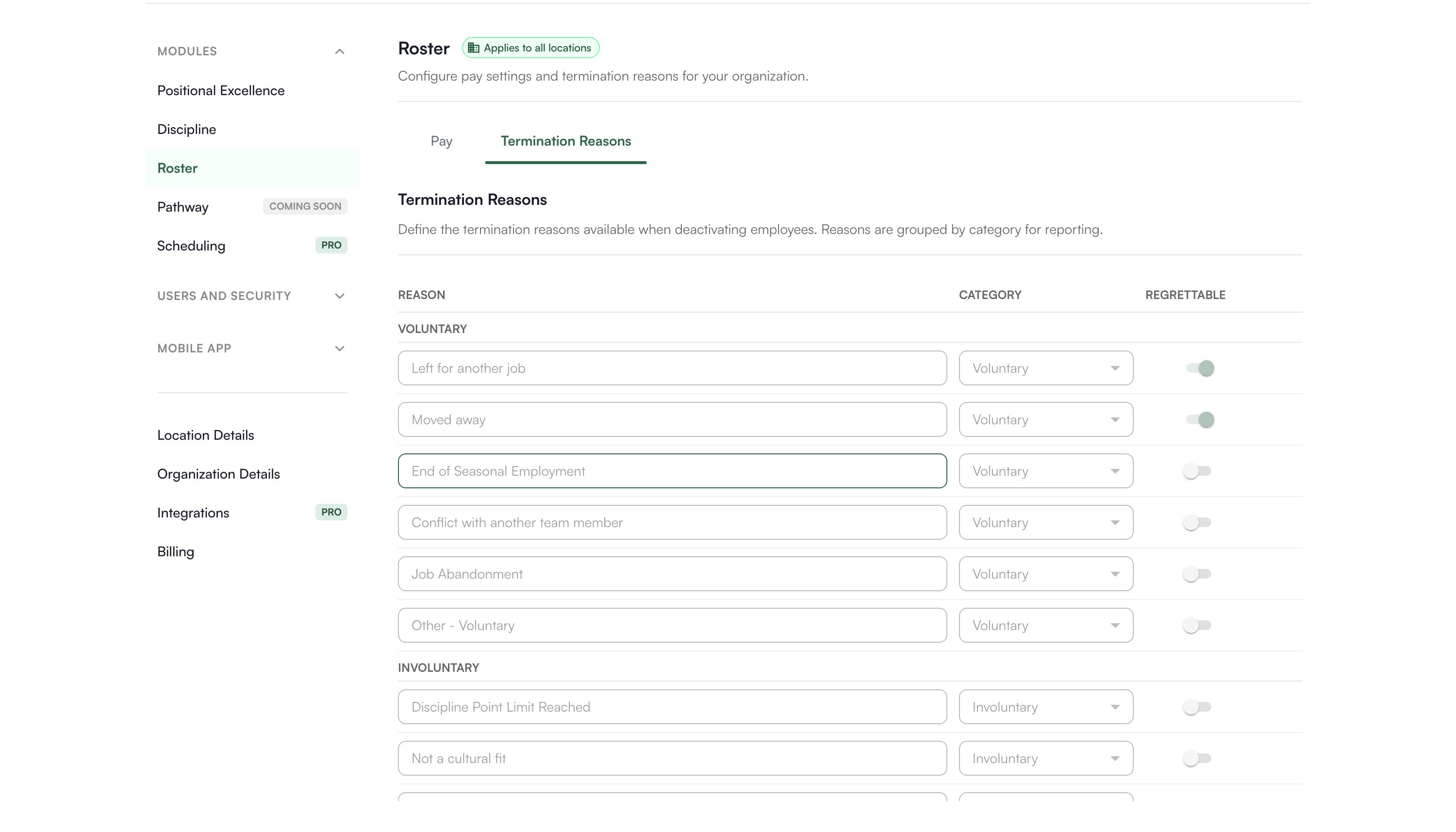
- Reason, the text the leader sees
- Category, one of Voluntary, Involuntary, or Other, which is how reasons group in reporting
- Regrettable, a toggle marking the departures you wish had not happened
A leader cannot deactivate a team member without picking a reason. If a leader reports an empty dropdown, open this tab once: the default list above is created the first time it loads with no reasons on file.
Common questions
How do I change a team member's name?
How do I change a team member's name?
Not here. Names live on the Roster. Legal names come from your scheduling system on import and are not editable in Levelset, but every team member has a Goes by name you can edit inline on the Roster or in their profile. It shows on the Roster, on ratings and discipline records, and in their profile. The schedule grid, shift details, and the org chart still show the legal name. An import never overwrites Goes by.
Do these pay rates get paid to anyone?
Do these pay rates get paid to anyone?
No. Levelset does not run payroll and does not send rates anywhere. This tab records your pay structure so it is written down in one place.
Who can see pay?
Who can see pay?
On the schedule and the org chart, people whose level includes Roster > View Pay Rates or Manage Pay Settings. On the roster grid, the Suggested Pay column follows Manage Pay Settings. This settings tab itself is not hidden by a pay permission: anyone who can open Organization Settings can read the rate table here, and Manage Pay Settings only controls whether they can change it. Pay is never shown in the mobile web app.
Can I add a termination reason later?
Can I add a termination reason later?
Yes. Add rows whenever you need. Reasons already recorded on past terminations keep the text they were saved with.