

Find and open a document
The page lists the documents shared with your role, in folders. Open a folder to see what is inside, filter by category with the chips at the top, or type in the search box. Click a document to open its details, read what it is about, and click Download to save the file.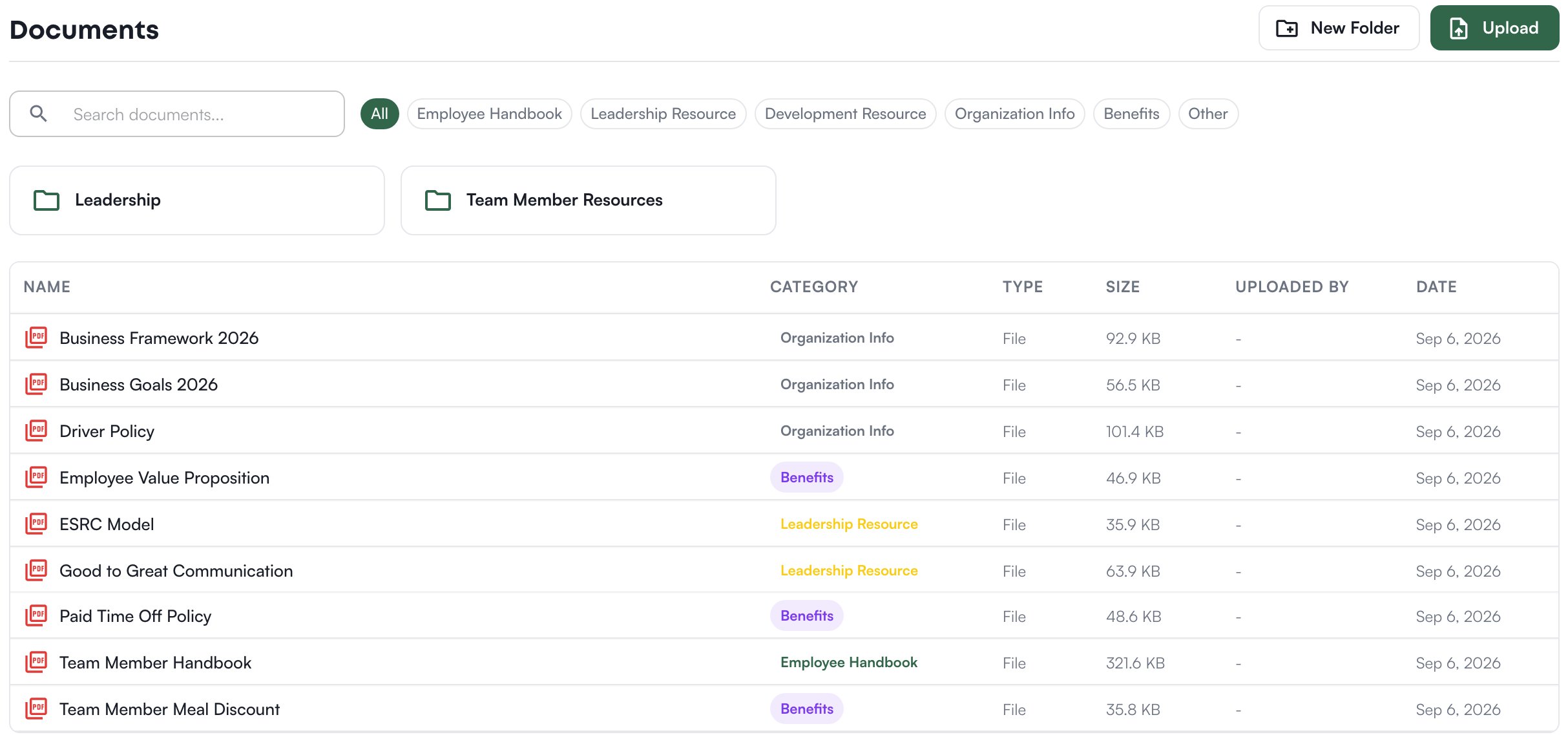
Add a document
- On Playbook > Documents, open the folder it belongs in, or stay at the top, and click Upload.
- Choose Upload File and drop in a PDF, DOCX, TXT, MD, PNG, JPEG or WebP file, or Link URL for a page on the web, or Paste Text for text you have.
- Give it a Document Name, an optional description and a Category, such as Employee Handbook or Benefits, which is how the list filters.
- Click the upload button. Levelset then extracts the document’s content so Levi can read it; the document’s details show how far that has got.
Choose who can open a document
Open the document and look at Sharing: one pill per role in your organization. A highlighted role can open the document, and Levi answers from it for people in that role. Your organization’s top role is always on and cannot be turned off. Click a role to add or remove it; the change saves at once, and if it cannot be saved the roles are put back. A document shared with every role reads as accessible to everyone in your organization, on this page and in Levi. A document with no roles on it is private to the top role.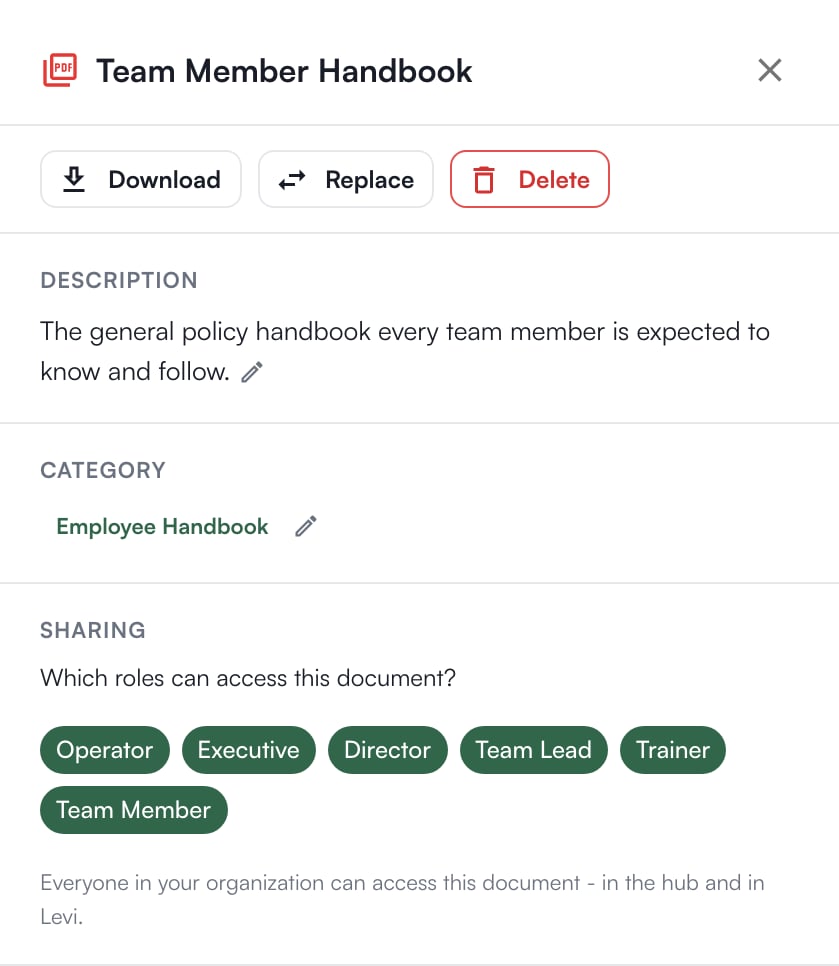
Who can do what
These decide what you can do on the page; Sharing on each document decides who can open it at all. If you’re missing something here, ask whoever manages roles in your organization.
Common questions
Someone cannot see a document I uploaded.
Someone cannot see a document I uploaded.
Their role is not on under Sharing for that document. Open it and click their role.
Can I stop a document reaching Levi?
Can I stop a document reaching Levi?
Levi follows Sharing. A document shared only with one role is never quoted to another. To keep it from everyone but the top role, turn every other role off.
A folder will not delete.
A folder will not delete.
A folder that still holds documents or subfolders cannot be deleted. Move them out first.