

Create a scoreboard
Click New scoreboard, name it (for example “Front counter”) and click Create. The scoreboard opens empty as a 16 by 8 grid. Rename and Remove sit at the top right. Each scoreboard is a tab above the grid; click one to switch.Add goal cards
Click Edit, then Add a goal. Search or scroll the cards, each a preview of how the goal will look, and click one to place it in the first free space. Click Done when finished; the layout saves as you go.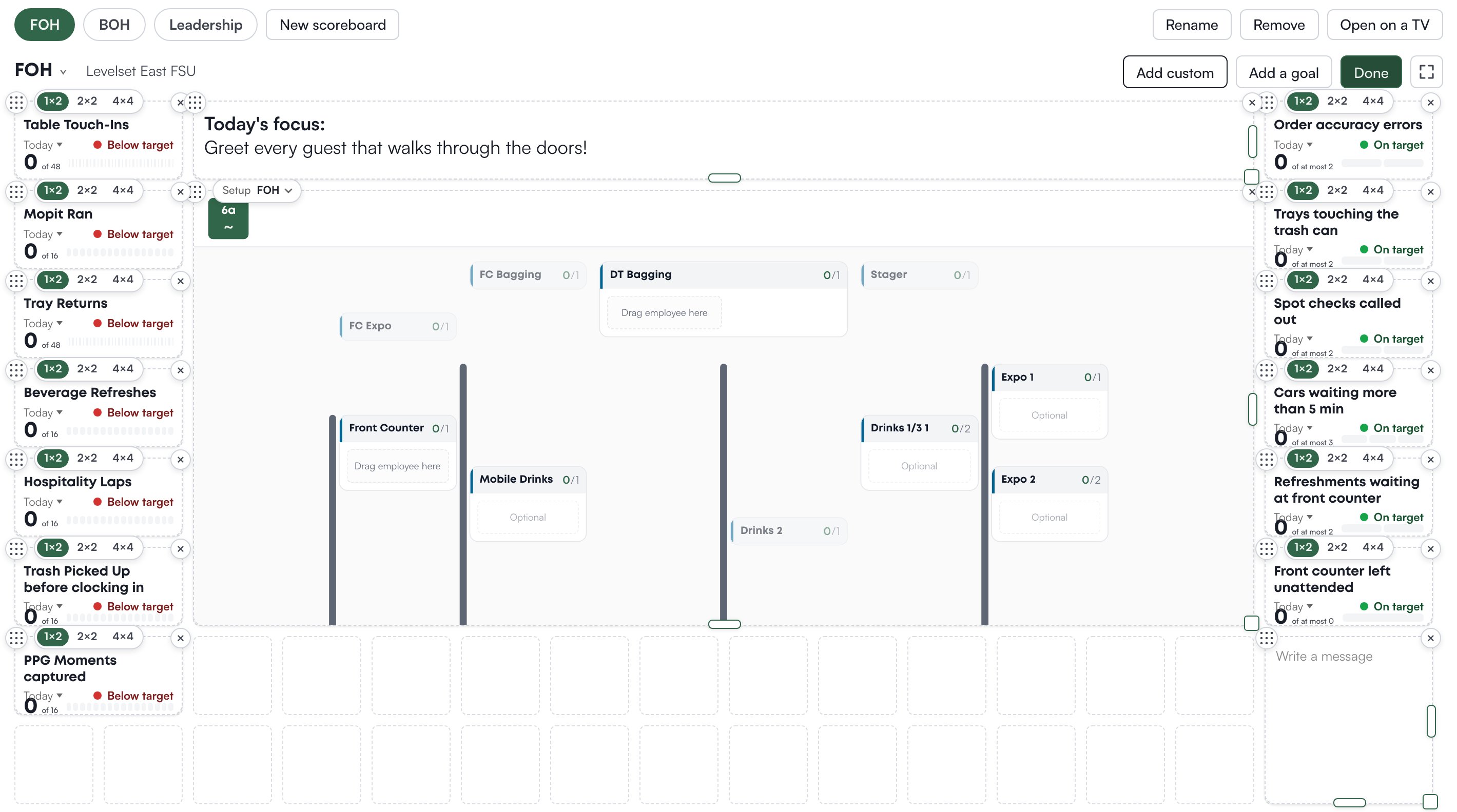
Add the setup or a message
In Add a goal, the last card is Setup: today’s setup for one zone, drawn exactly as the setup page shows it. Place it, then pick the zone from the Setup menu on the card and drag its right or bottom edge to resize it a block at a time. Add custom places a message card. Type straight into it; the toolbar offers Bold, Italic and a text size (S, M, L). It resizes like the setup card. A message left blank does not show on the TV.Show it on a TV
Two ways, both from the scoreboard:- The corner-arrows button (Show on a screen) puts this browser into full screen: the scoreboard alone, with the date and clock in the bar. Exit leaves it.
- Open on a TV opens the scoreboard in a new tab as a page of its own, with no dashboard around it. Copy the link, open it on the TV’s browser, and sign in with a Levelset account that can see this store. Leave it open: tallies appear as they are logged, the day rolls over at midnight, and a layout change made on the dashboard reaches the screen within a minute without a reload.
Who can do what
If a button described on this page is missing for you, this table names the permission behind it.
If you’re missing something here, ask whoever manages roles in your organization.
Common questions
A card will not grow.
A card will not grow.
The scoreboard says No room to grow that way. Move or shrink the cards beside it first.
Can one scoreboard show two stores?
Can one scoreboard show two stores?
No. A scoreboard belongs to the store picked at the top of the dashboard and shows that store’s goals and setup.
The TV shows an old layout.
The TV shows an old layout.
The TV page re-reads the layout once a minute. Wait a minute, or reload the page.
Can people tally from the TV?
Can people tally from the TV?
No. The TV page shows the scoreboard only.