

Create an automation
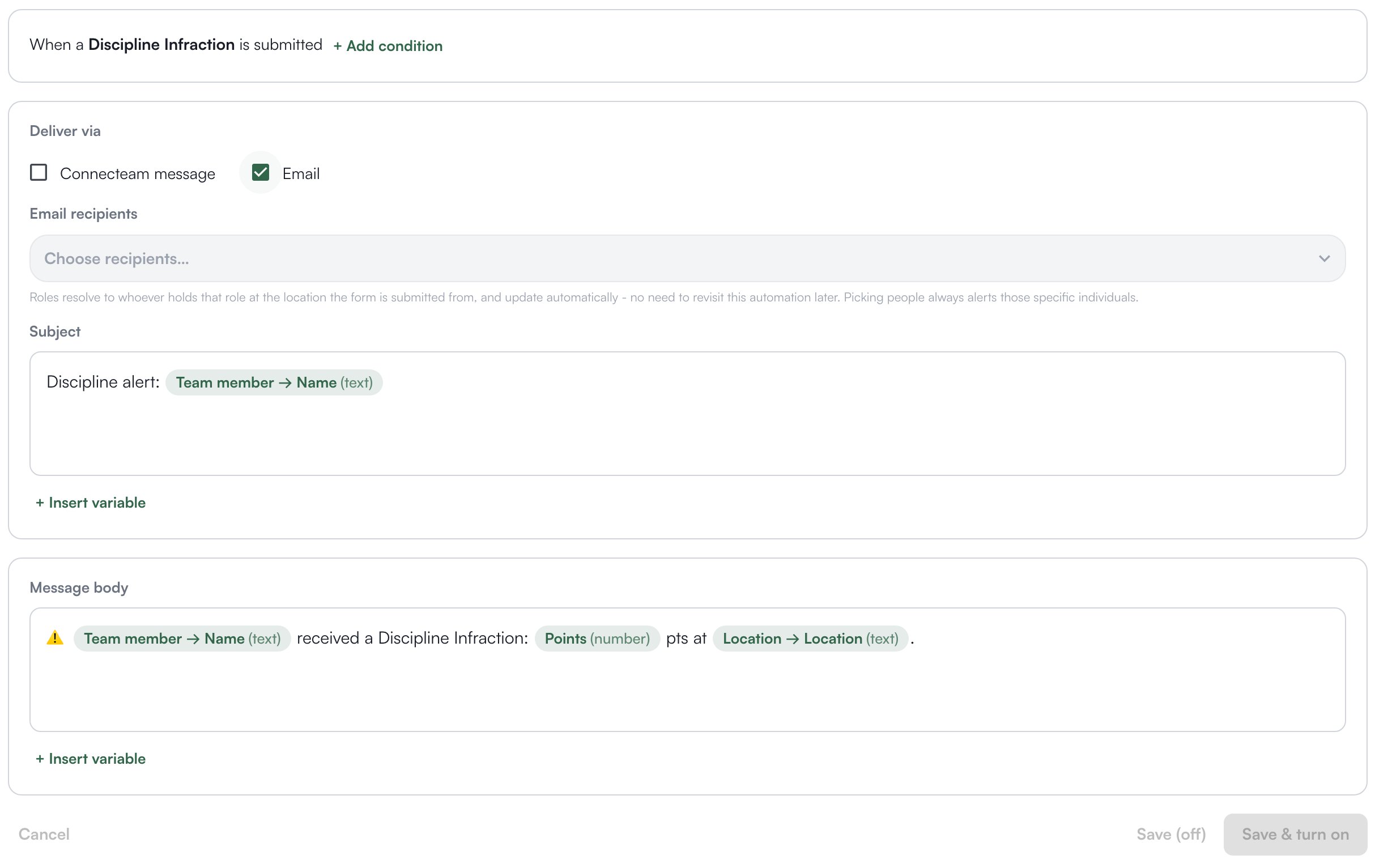
Say a store wants an email whenever a closing checklist is submitted with a fridge temperature above 41.- On Workflows > Automations, on the Rules tab, click New automation and pick the form that should trigger it: here, the closing checklist. The same list offers Levelset’s discipline form, which runs when an infraction is submitted or a disciplinary action is recorded, and Position average dropped below threshold.
- The rule opens as a sentence, “When a closing checklist is submitted”. Click ”+ Add condition” to add “and only if”, then pick the fridge temperature field, an operator and a value.
- Under Deliver via, tick Email, Slack or Connecteam message. Email asks for Email recipients, a Subject, and whether to Allow opt out; Slack asks for Slack channels; Connecteam asks for the account and a chat.
- Write the Message. + Insert variable drops in a value from the submission, such as the temperature or who submitted it.
- Check the preview under the message: as you type, it shows the message filled in from the most recent submission. Then click Save & turn on.
Let Levi draft one
On Playbook > Ask Levi, or in a direct message to Levi in Slack, ask for the alert in plain words. Levi builds a draft from your organization’s own forms, infractions and channels, asks one short question if your words could mean more than one of them, and shows the draft on a card. It sends by email to you unless you name a Slack channel Levi is already in, or a Connecteam chat, and covers only stores you can see. Click Confirm and the rule is created and turned on; it reads Made by Levi in the list here and can be edited like any other. A draft not confirmed within thirty minutes expires. Drafting and confirming both need the same permission as creating a rule here, plus Automations turned on for your organization.Edit, turn off or delete a rule
Each rule on the Rules tab shows its trigger and where it delivers, with a switch that turns it on or off, Edit and Delete. A rule whose form has been deleted says so and can only be deleted.
See what was sent
The Activity tab lists every delivery with its rule, trigger, status (Pending, Delivered, Failed, Retrying or Skipped) and time. Click one for the message as sent, the recipients and any error.Discipline alerts
A discipline automation, triggered by an infraction or a disciplinary action, can also be reached from the Discipline Alerts card on Performance > Discipline, and each form has its own Automations tab that lists the rules for that form.Who can do what
If you’re missing something here, ask whoever manages roles in your organization.
Common questions
Slack is greyed out under Deliver via.
Slack is greyed out under Deliver via.
Slack posting is switched on by Levelset, not from your settings. Email support@levelset.io.
Slack is not offered under Deliver via at all.
Slack is not offered under Deliver via at all.
Slack is not connected. See Connect Slack.
An email recipient shows no email.
An email recipient shows no email.
They have no email on the Roster. They are included automatically once one is on file.