

Create a leading goal
Say the store wants the front counter to log ten second-mile service moments a day.- On the Leading view, click New leading goal.
- Enter a Name, for example “Second mile moments”.
- Under How it is counted, leave Tally (someone clicks +1 each time it happens) or pick Auto tracked (Levelset counts it from what the team already records). This can’t be changed after saving.
- Under What kind of behavior, leave Winning behavior (more is better; the day is won at or above the target) or pick Opportunity (less is better; the day is won at or below the limit). The next field is labeled Target per day or Limit per day to match.
- Enter the target: 10.
- For a tally goal, Track who logs each tally lists each person’s tallies on the goal’s page. Untick it for a count nobody owns, such as guests greeted at the door by whoever is nearest.
- For an auto-tracked goal, pick What to count and its filters. Who owns it then also decides whose records are counted: a goal owned by the Kitchen department counts only that department’s ratings or routines.
- Click Save goal.
A filter left empty counts everything, so a ratings goal with no positions picked counts ratings at every position. Minimum ratings is the fewest ratings a day needs before it is scored; a day with fewer is left out of the won and lost days rather than counted as a loss.
Create a lagging goal
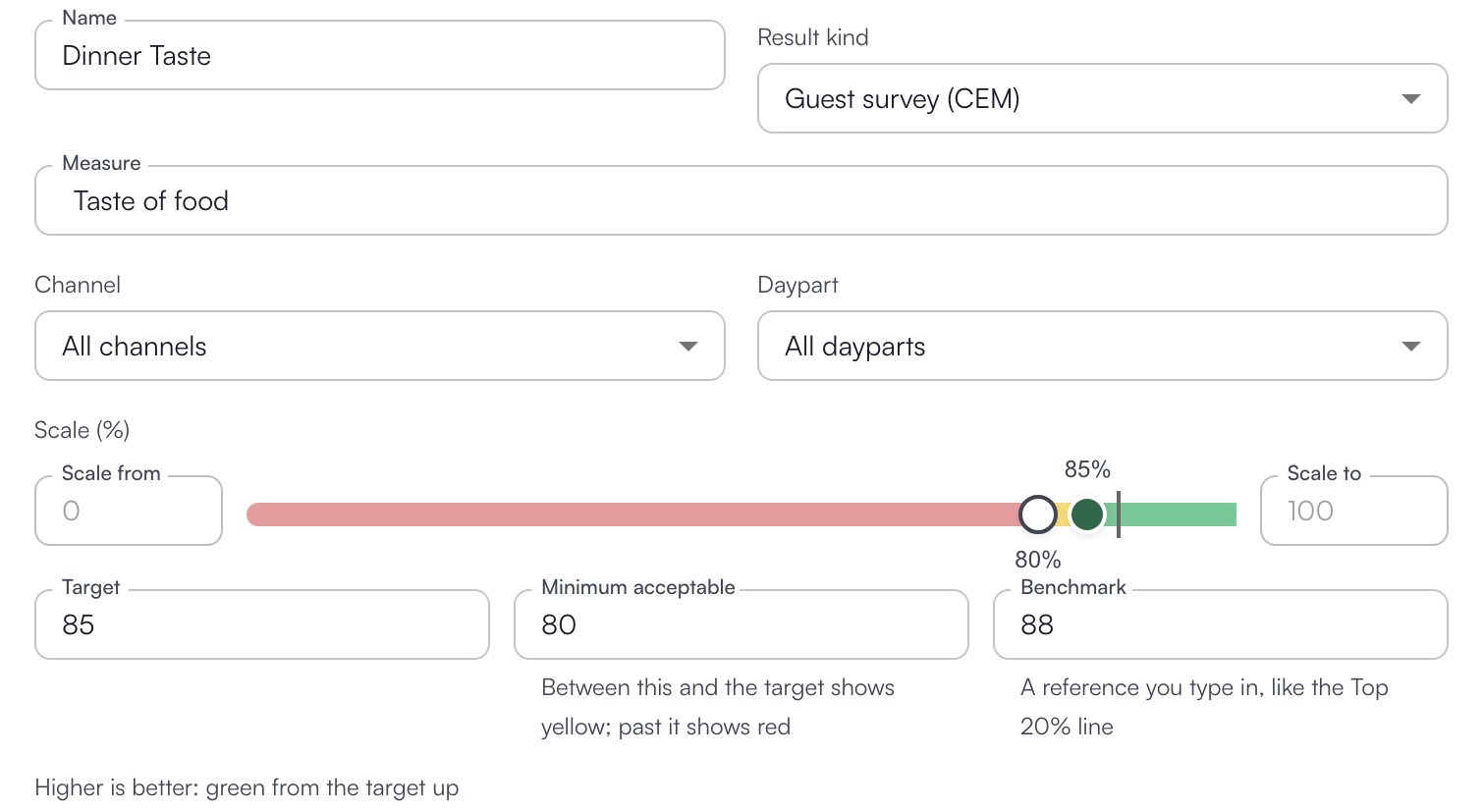
Say the store wants dinner taste on the guest survey at 85% or better each month.- On the Lagging view, click New lagging goal.
- Enter a Name, for example “Dinner Taste”.
- Under Result kind, pick what kind of report the numbers come from. This can’t be changed after saving, and neither can a custom goal’s Measured as.
- For a guest survey, pick the Measure (Taste of food), and narrow it with Channel (Drive-thru, Dine in, Carry out, Mobile) or Daypart (Breakfast, Lunch, Snack, Dinner) when the goal is about one slice of the report. Sales and Transactions offer Daypart only.
- On the Scale, enter the Target (85). The scale shows it as a marker you can also drag.
- Add a Minimum acceptable value, a second marker; the goal’s page labels it Floor. Between it and the target the goal shows Near target; past it, Below target. Which way is better is read from the two markers: a target above the minimum means higher is better, a target below it means lower is better.
- Add a Benchmark if you want a reference line on the chart, such as a top store’s figure.
- Under Assessed, pick the period one result covers: Weekly, Monthly, Quarterly, Every six months, Yearly, Repeating (every so many days, weeks or months from a Starting on date) or Custom range (one fixed From and To).
- Click Save goal.
Results are entered later, from the goal’s page or the Lagging view; see Add data.
Decide who owns and who sees a goal
Who owns it is who is accountable: This location unless you pick a Department, Group or Person from the org chart. Applies to has one box, This location only, ticked by default. Untick it and the goal applies to every store in the organization, each with its own numbers; the owner then reads Whole organization. Visible to everyone is ticked by default. Untick it and pick Roles that can see this goal; everyone else loses the goal from their list, the matrix and scoreboards. People who can manage goals see every goal regardless.Link a leading goal to the result it drives
Linked goals show as arrows on the Matrix, so you can see whether the daily work is moving the result. On a leading goal, Drives these results lists the lagging goals this behavior moves. A lagging goal has two lists: Driven by, the leading goals or other results that move it, and Drives, the results it moves in turn. Two links are refused: a goal that would both drive and be driven by the same goal, and a chain of links that leads back to where it started. Areas responsible ties the goal to one or more areas of the store, which is what the Area filter on the Leading and Lagging views uses. Pillars records which pillar or two the goal feeds; it is a label for now and changes no score.Edit or archive a goal
Open the goal from its card and click Edit. Change any field and Save goal; Cancel returns to the goal’s page. A goal that needs a different How it is counted, Result kind or Measured as is archived and created again. What archiving does is described in Open a goal.Who can do what
If a button described on this page is missing for you, this table names the permission behind it.
If you’re missing something here, ask whoever manages roles in your organization.
Common questions
The Measure I need is not in the list.
The Measure I need is not in the list.
Type it. A measure typed into the field is kept under that name, and reports naming it match it when results are entered.
Why is a goal missing for some people?
Why is a goal missing for some people?
Visible to everyone is unticked and their role is not in Roles that can see this goal, or it is a lagging goal and their role lacks Goals > View Lagging Goals.