

Areas
The Positions tab has two sub-tabs. On Levelset positions, Areas at the top lists your areas. Front of House and Back of House are always there. Click Add area for anything else you rate or plan setups for, Hospitality in the example, and give it an Area name and a Spanish name. Each area has four settings.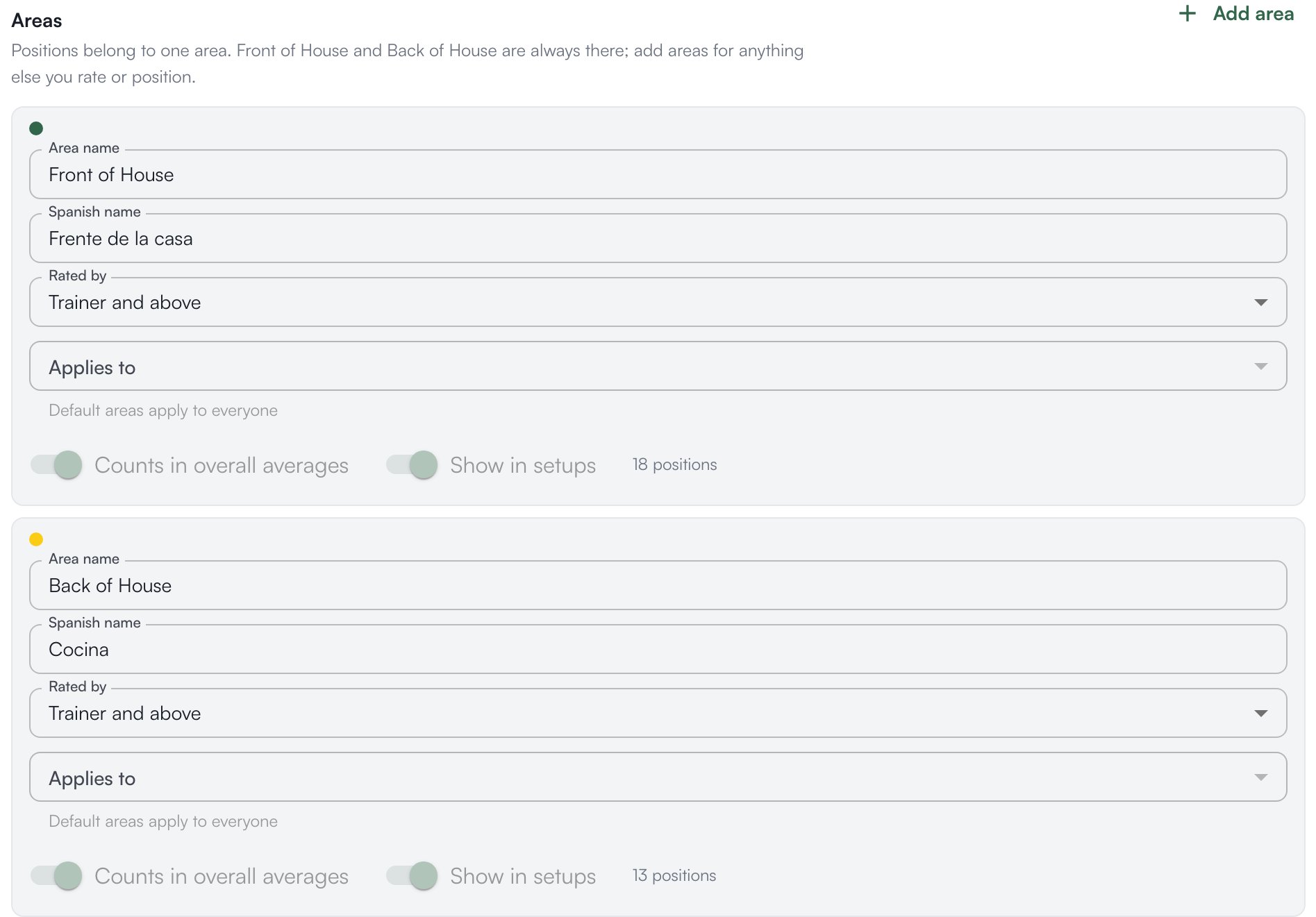
Areas you added have arrows to reorder them and a trash icon; the two default areas have neither. An area can be deleted only once every position has been moved out of it and no setup template or store layout still uses it.
Add or edit a position
- On Levelset positions, click Add position under the area it belongs to, Hospitality for Lobby Host, or click an existing position to expand it.
- Enter the Position name and pick the Area. Rated by (this position) overrides the area’s rule for this position only; leave it on inherit to follow the area.
- Write a Description of what the position owns and what good work there looks like. It shows under the position on the rating form.
- Turn on Use for positional ratings and write the criteria. Turn on Show in Levelset scheduling if the position should be available on the schedule and in setups; this switch takes Scheduling > Manage Scheduling Settings. A position can do one, both or neither.
- Click Save changes. Leaving with unsaved edits asks whether to save, discard or keep editing.
Write the criteria
Each rated position has up to five criteria. For each one, the Criterion name is the short label shown on the form, the Description says what to watch for, and Rating guidance (1 / 2 / 3) says what each score means for this criterion; a field left blank shows only the score’s own name, Not Yet, On the Rise or Crushing It. Written guidance is what keeps two people from scoring the same work differently. Pillar 1 and Pillar 2 tag the criterion to a pillar, one of the parts of the operation the Pillars scores track; see Pillars. Allow N/A lets the person rating mark the criterion Not Applicable when it can’t be observed, and it then leaves the average.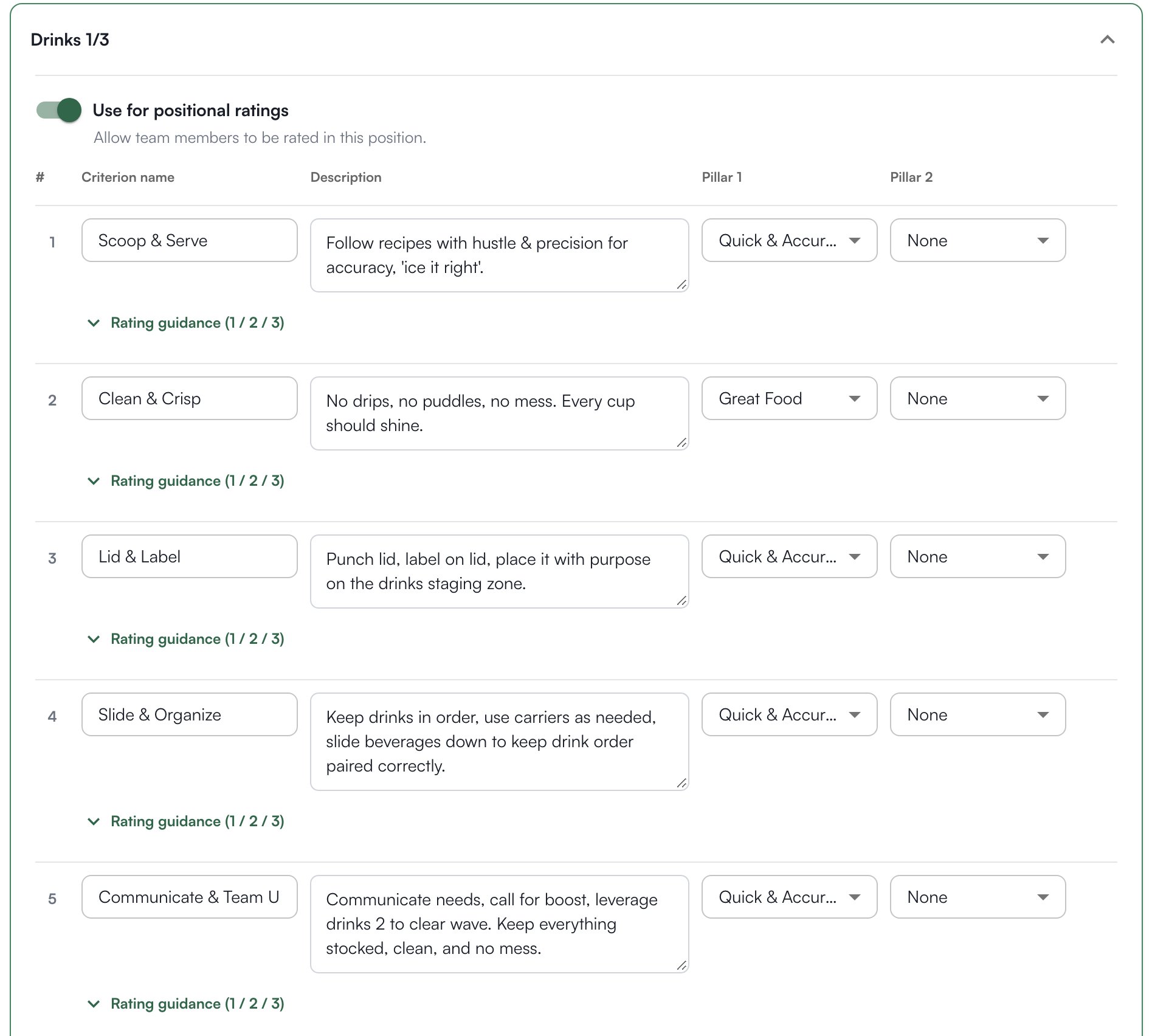
Archive a position
Positions are never deleted, because past ratings and shifts point at them. Expand the position, click the trash icon and confirm Archive position: it leaves the active lists and keeps its ratings, criteria and shifts. If a job from your scheduling system is still connected to it, unlink the job first.Connect your scheduling system’s jobs
The second sub-tab of Positions lists the job names found in the schedules imported from your scheduling system, grouped by store, with a dropdown to connect each one to a Levelset position so imported shifts land on the right position. Connect a job only when it always means one position; a general job is better left unlinked. The dropdown can also create a matching Levelset position, made for scheduling only with ratings off. Jobs appear only after a schedule has been imported for that store. Connecting, unlinking and creating positions from jobs takes Scheduling > Manage Scheduling Settings; without it the jobs are listed read only.Set the color scale
On the Rating scale tab, ratings average between 1.0 and 3.0 and two cut-off points split that range into three bands: Not Yet up to the first, On the Rise up to the second, and Crushing It above it. The defaults are 1.75 and 2.75. Both must be between 1.0 and 3.0 with the first below the second, and they apply to the whole organization. These bands color every rating view and the setup, so set them where your standard is. Save Changes appears once you edit. Rating goals, lower on the same tab, is how many ratings each role is expected to submit per week or month. Leave a role blank for no goal.Require a comment on every rating
The Form settings tab has one switch, Require Additional Comments. When it is on, a rating can’t be submitted without a comment. It is off to start; turning it on gives you more to read back later and makes each rating take longer. Click Save Changes.Who can do what
If a control described on this page is read only for you, this table names the permission behind it.
If you’re missing something here, ask whoever manages roles in your organization to turn it on. See Roles.
Common questions
A position I edited is not on the rating form.
A position I edited is not on the rating form.
Check that Use for positional ratings is on and at least one criterion has a name.
Someone can't rate anyone in one area.
Someone can't rate anyone in one area.
Their role is below that area’s Rated by role, or below the position’s own Rated by (this position). Lower the setting, or ask whoever manages roles in your organization whether their role is right.
How do I delete a rating?
How do I delete a rating?
Not here. On Performance > Positional Excellence, the SmartView tab has a trash icon on each rating’s row. A rating can’t be edited, only deleted. See Delete a rating.
Can I add a sixth criterion?
Can I add a sixth criterion?
No. A position has five criterion slots. Fill the ones you use and leave the rest blank; a blank slot is not shown on the form.