

Roles, levels and permission levels
The Roles tab is where your organization’s job titles become permissions. A role is a job title, such as Team Lead (use your own role names); your organization defines its own, and each team member has one at each store. Each role has a level, its rank in the order from the top role down, shown in the Level column: 0 is the top, the Operator, and a higher number is further down. Every role also has a permission level with the same name: the set of things anyone in that role can do in Levelset. Change it and everyone in the role changes with it. A custom level is a permission level made for particular people instead of a whole role. An admin level is a permission level for logins that aren’t tied to a role, such as office staff added on the Access tab; Levelset creates two, Administrator 1 and Administrator 2. Open People > Team & Access and click the Roles tab. Every row is one of your organization’s roles, with its level, its Dashboard box, how many people hold it (hover the count to see it per store), and Edit permissions. Custom levels are listed under the roles. What you can do here depends on your own role; if a button described below is missing, Who can do what names the permission. Here because a permission is missing? Go to Edit what a role can do.Edit what a role can do
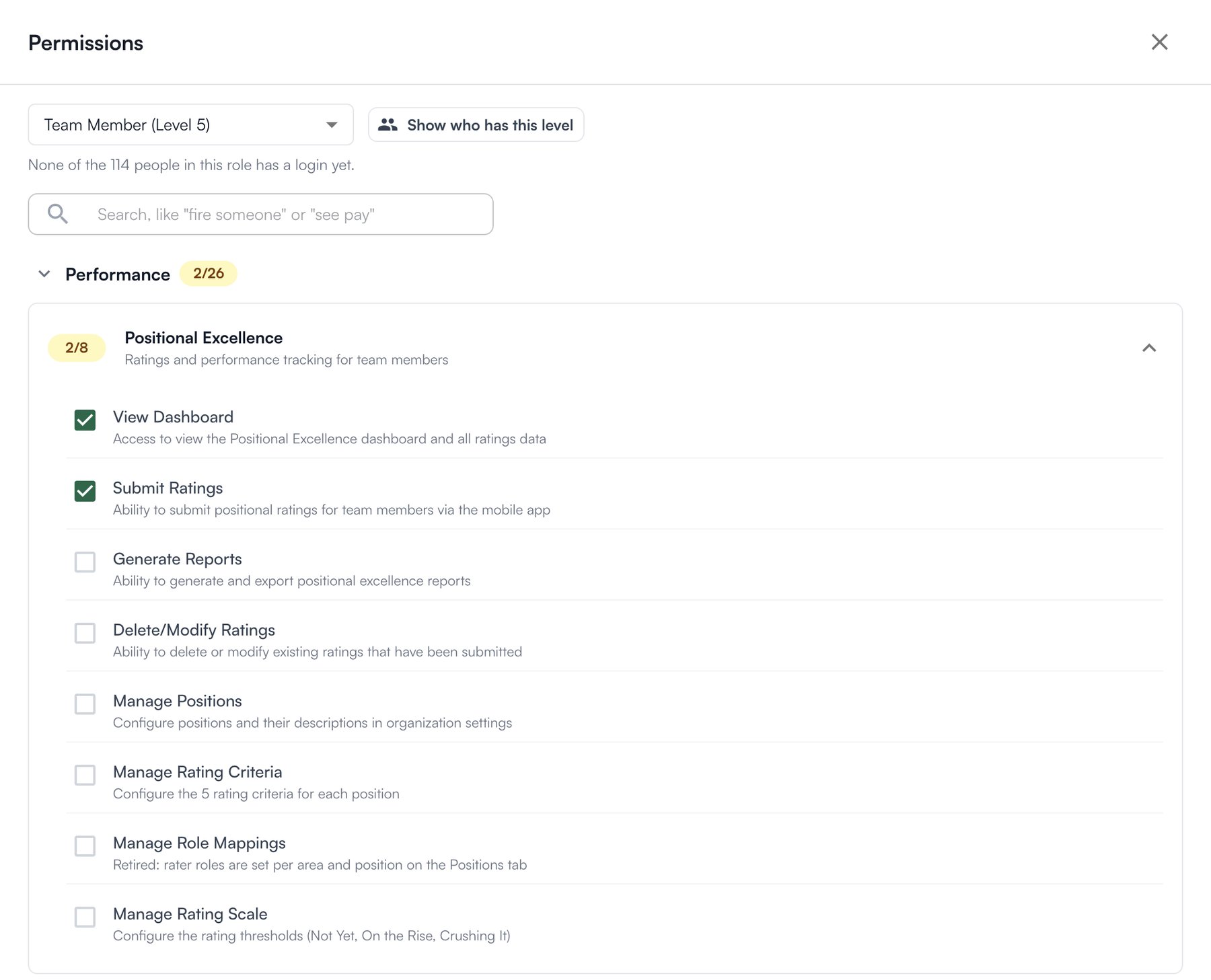
Say a store wants its Team Leads to see the Evaluations page.- On the Roles tab, click Edit permissions on the role: Team Lead.
- Find the permission. Open a section, or type in the search box in plain words, for example “fire someone” or “see pay”. Here, search “evaluations” and find View Evaluations.
- Tick or untick it. It saves at once.
Make a custom level for specific people
Say one Team Lead should also manage the schedule, and the rest shouldn’t.- On the Roles tab, click Add custom level under Custom levels.
- Enter a Permission Level Name.
- Pick the Permission Tier: the level the custom level belongs to, here Team Lead’s. It starts from Levelset’s default permissions for that level, not from the role’s edited ones.
- Click Create, then Edit permissions on the new level to change it.
- On the Access tab, open the person and pick the level under Permission level.
Turn dashboard access on or off for a role
The Dashboard box decides whether people in the role can open the dashboard at all, separately from what they can do inside. Tick or untick it. A role nobody has set follows the default, shown as Default: on for the Operator and the two levels below. Click Use default to put a role back on it. The Operator always has the dashboard. A setting made for one person on the Access tab wins over the role.Add, rename or delete a role
Reorder roles
Drag a role by the handle on the left of its row to its new place. The level numbers follow the new order, and each role’s permission level moves with it. The Operator stays at the top, and a move that involves a role at or above yours is refused when it saves.Who can do what
To give a permission to a whole role, someone whose role is above it opens this tab, clicks Edit permissions on the role, and ticks it. For one person only, they make a custom level and pick it for that person on the Access tab. If you’re missing something here, ask whoever manages roles in your organization to turn it on.
Common questions
I gave a role a permission and one person still can't do it.
I gave a role a permission and one person still can't do it.
Their Permission level on the Access tab is a custom level, which doesn’t follow the role. Either tick the permission on that custom level, or set them back to Role default.