

The Slack card
Say your store wants a Slack message in its leaders’ channel whenever a discipline form is submitted. Connecting Slack takes a few minutes and is covered step by step on Set up Slack for your store: click Connect Slack, approve Levi in Slack, and you come back to a card that reads Connected with the workspace’s name. From then on the card holds:- the Set up Slack checklist, whose five steps tick as each is done;
- the Default channel, where automations post unless they name another channel, with Send a test message and Create an automation that posts here under it;
- a Share with your team message to paste in Slack, in English or Spanish;
- the channels Levi learns from;
- Review member links, with how many members are waiting for review after picking their own name in Slack.
Let Levi learn from a Slack channel
Under Levi learns from these channels, each channel has a switch. Turning one on has Levi read that channel’s messages from the last 90 days, then new messages as they arrive, to learn how your store runs so it answers your team’s questions better. Levelset explains this first and asks which store the channel learns for. The first time, Slack has to approve one more permission, reading channel history: click Continue to Slack, approve, and the channel is already on when you come back. While Levi reads the last 90 days, the channel shows a progress bar with the percent read and about how long is left; a channel waiting behind another says how many are ahead of it. Members of the channel only see that Levi joined. Levi never quotes or shows one person’s messages to someone who couldn’t see them. A channel shared outside your workspace, or one with guests, can’t be turned on, and a private channel needs Levi invited to it in Slack first. A message edited or deleted in Slack updates or removes what Levi learned from it. To change the store a channel learns for, turn it off and on again. Turning a channel off stops Levi reading it and removes what it learned from that channel. Learning is available only when your organization’s plan includes Levi.When the Slack connection needs attention
When Slack needs a permission it didn’t have when you connected, the card says what for, and Approve takes you back to Slack for it; nothing else changes. Reconnect Slack repairs a connection Slack has stopped accepting and keeps the member links. Disconnect stops automations posting, stops Levi answering in Slack, and turns off learning from every channel, removing what was learned; after reconnecting, turn each channel on again. Reconnecting the same workspace keeps the member links. Connecting a different workspace ends them and pauses Slack automations until each one is given a channel in the new workspace. If the card says Slack is not available, Levelset hasn’t set Slack up for your organization yet; email support@levelset.io.Connect Connecteam
If the same store also runs its team chat in Connecteam, an automation can post there instead of, or as well as, Slack.- In Connecteam, open your profile menu, choose Integrations to open the Integration Center, go to the API keys tab, and create a key named “Levelset”.
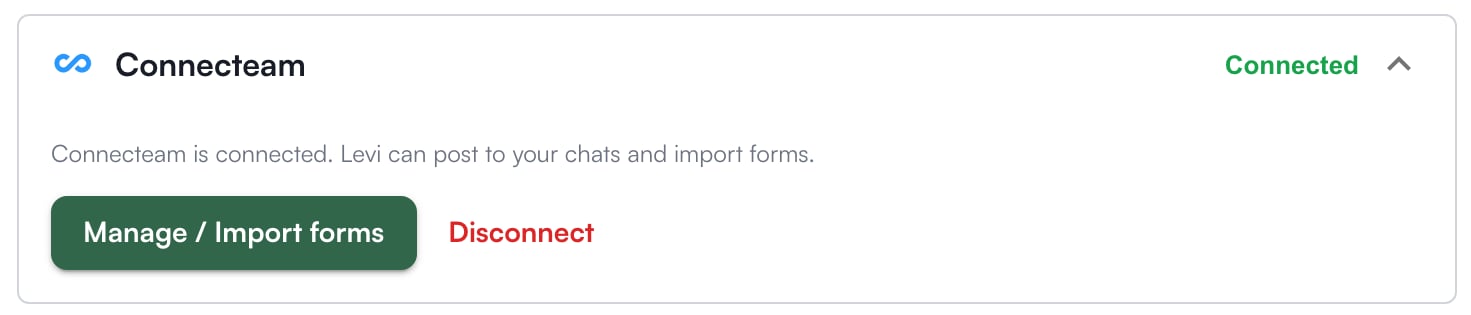
- On Organization > Set up > Integrations, on the Connecteam card, paste the key under API key and click Proceed. Levelset tests the key and the card reads Connected; the permissions Levelset needs come with the key.
- Click Manage / Import forms. The window lists the chats Levelset can post to and, under Forms found, the forms in your Connecteam account. Tick the ones to bring over and click Import selected forms.
Your scheduling system is not an integration
Bringing your team and schedule over from your scheduling system is an import you run yourself from Team & Access, not a connection set up here. The one related setting is matching each of your scheduling system’s jobs to a Levelset position, under Performance > Set up > Positions and ratings; see Connect your scheduling system’s jobs.Who can do what
If you’re missing something here, ask whoever manages roles in your organization to turn it on. See Roles.
Common questions
Slack said an admin has to approve the app.
Slack said an admin has to approve the app.
Your workspace lets only a Slack admin approve new apps. Ask them to approve Levi, then click Connect Slack again.
Slack says the workspace reached its app limit.
Slack says the workspace reached its app limit.
Slack’s free plan limits how many apps a workspace can install. Remove an app you no longer use in Slack, then connect again.
Can I connect Levelset to our own systems?
Can I connect Levelset to our own systems?
No. Slack and Connecteam are the two connections, and everything else is done in Levelset itself.
Is there an Integrations tab on the Forms page?
Is there an Integrations tab on the Forms page?
No. Integrations has one home, Organization > Set up > Integrations, and an old link to that tab opens this page.